• How To Downgrade From iOS 5 To iOS 4.X Guide


    Well you had to do it didn’t you. You just had to taste that infamous iOS 5 beta and now you have been cast from many stuff you used to in the previous version, don’t worry! We are here to help bring you back from the abyss!

    Prerequisites:

    1. The IPSW of choice (I would recommend 4.3.3) as no need to roll back further. Just make sure you have your SHSH stored with Cydia if you choose to go older then 4.3.3).
    2. TinyUmbrella. Just download the version that will work for your system.
    3. iTunes 10.5 beta. You should have this already as you needed it to install 5.0 beta

    How To Downgrade From iOS 5 To iOS 4.X Guide:

    1. Open iTunes
    2. Plug in your device
    3. Enter DFU mode
      • Turn device off
      • Hold power button for 3 seconds
      • Without releasing power button, hold down home button for 10 seconds
      • Release power button, but continue to hold the home button until iTunes recognizes your iPhone in recovery mode. If you did it right, it should just have a black screen with no connect to iTunes logo.
    4. Hold down the option key / shift on windows and click the restore button in iTunes
    5. Browse to wherever you have your IPSW saved and select it.
    6. iTunes will give you some warning, just click the flashing ok button.
    7. Sit back while your computer is working.
    8. If you are using an iPhone 4, you should be done. If not, you have received some sort of error more then likely. This is normal. Open TinyUmbrella and click the exit from restore button.
    9. YOUR DONE!!!

    Note:

    if you have changed your host file for cydia, you have to change it back to use this guide. TinyUmbrella will do this for you in the advanced tab.

  • iOS 5 Tethered Jailbreak Using Sn0wbreeze 2.8 Guide


    Sn0wbreeze 2.8 beta 2 (a.k.a PwnageTool for Windows) brings tethered jailbreak for iOS 5 on iPhone 4, iPhone 3GS (New Bootrom), iPod Touch 4G, iPod touch 3G, & iPad 1. It brings Untethered jailbreak for iPhone 3GS (Old Bootrom).

    A step by step guide on how to jailbreak iOS 5 Beta tethered using Sn0wbreeze 2.8 (Windows)

    Notes:

    • For Redsn0w you can follow our guide posted here (Redsn0w 0.9.8) to get tethered jailbreak iOS 5.
    • For iPhone 3GS (Old Bootrom) its Untethered.

    Step 1: Start Sn0wbreeze, click the next “blue” arrow to proceed.

    Step 2: Select the required firmware .ipsw file for your iOS device by clicking on the “Browse” button.

    Step 3: Sn0wbreeze will now identify the selected IPSW file. Once done, click the next “blue” colored arrow to proceed.

    Step 4: Now select the “Expert Mode”, followed by “Build IPSW” option to start creating your custom firmware.

    Step 5: Sn0wbreeze will greet you with the following “Done!” message when the custom firmware has been successfully created.

    Step 6: Now follow the onscreen steps to enter DFU mode using Sn0wbreeze:

    • Hold Power and Home buttons for 10 seconds
    • Now release the Power button but continue holding the Home button for 10 more seconds
    • You device should now be in DFU mode

    Step 7: Start iTunes, click on your iOS device icon from the sidebar in iTunes. Now press and hold Left “Shift” button on the keyboard and then click on “Restore” (Not “Update” or “Check for Update”) button in iTunes and then release this button. This will make iTunes prompt you to select the location for your custom firmware 5 file. Select the required custom .ipsw file that you created above, and click on “Open”.

    Step 8: Now sit back and let iTunes do the rest for you. This will involve a series of automated steps. Just wait while iTunes installs the new firmware 5 on your iOS device. Your iOS device screen at this point will be showing a progress bar indicating installation progress. After the installation is done, your iOS device will be jailbroken on iOS 5.

    Required Downloads:

  • JailbreakMe 3.0 For iPad 2 Jailbreak is Imminent?


    iPad 2 is the only device left without jailbreak or accurately Apple’s A5 processor-based architecture in iPad 2 and later iPhone 4S/5 seems a hard puzzle to solve. The Limera1n exploit, which worked on A4-based iOS devices like iPod touch 4G and iPhone 4, is hardware-based and, since iPad 2 is A5-based, the exploit doesn’t work on it. And so the community has to find an all-new exploit this time around.

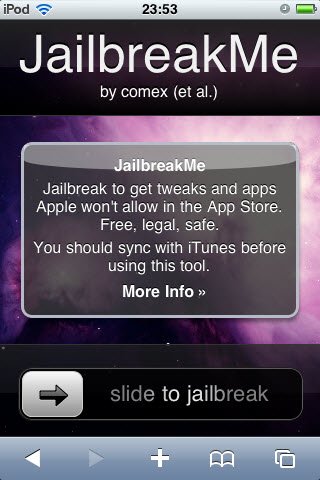
    iPhone hacker Comex and his JailbreakMe tool, which worked on a userland exploit, used to jailbreak iOS 4.0/4.0.1 with a very simple method of “slide to jailbreak” bar and Comex’s tool did the rest. However the exploit was later patched in iOS 4.0.2.

    Today, Comex has updated his website for the tool JailbreakMe. The updated page teases an image:

    The image shows a signboard with the word “PDF” written on top of it. this is might be pointing towards a potential PDF-based exploit. however its highly likely the new tool would work on iPad 2. Comex teased a lot of tweets:

    We just pin our hopes for an untethered jailbreak for iPad 2 as well as other iOS devices on iOS 5 which is set to release this fall.

  • iOS 5 Tethered Jailbreak Using Redsn0w 0.9.8 Guide


    Redsn0w updated to bring tethered jailbreak for iOS 5 on iPhone 4, iPhone 3GS, iPod touch 4G, iPod touch 3G and iPad. No Jailbreak for iPad 2 yet.

    A step by step guide on how to jailbreak iOS 5 beta tethered using Redsn0w 0.9.8 (Mac & Win)

    Notes:

    1. If you rely on ultrasn0w unlock don’t use Redsn0w and don’t try iOS 5 at all.
    2. You must have a developer account with Apple or you have your UDID registered by a developer account. More details here.

    Step 1: Download iOS 5 for iPhone, iPad or iPod touch (download links at the end).

    Step 2: Restore to iOS 5 in case you haven’t yet using the IPSW file you just downloaded via iTunes 10.5 Beta.

    Step 3: Start Redsn0w and point it to the official iOS 5 firmware file.

    Step 4: Now select “Install Cydia” and click “Next”. Optionally (if available), you can also select any other option you like.

    Step 5: Now make sure your device is both OFF and PLUGGED IN to the computer before you click “Next”.

    Now you will be guided on how to enter DFU mode. Quickly hold “Power” button and then while holding the “Power” button, you will now have to hold “Home” button too. Now after few seconds release “Power” button but keep holding “Home” button until installation begins.

    Step 6: Wait until you get tethered iOS 5 jailbroken in few minutes.

    Furthermore, iSpazio reports a first list of compatible and not working tweaks on iOS 5 beta 1:

    Working

    • iFile
    • CyDelete
    • OpenSSH
    • iSHSHit

    Not Working

    • MobileSubstrate
    • Springtomize
    • PhotoMail
    • ActionMenu
    • Celeste
    • BiteSMS
    • WinterBoard