• Apple Releases iOS 4.3.2 For iPhone, iPad, iPod Touch Direct Download Links


    Apple has released iOS 4.3.2 update for iPhone 3GS, iPhone 4 GSM, iPad, iPad 2, and iPod touch 3rd gen and 4th gen models. The 4.3.2 update includes several security updates and bug fixes, noticeably to resolve freezing FaceTime calls, and the update also resolves a 3G connectivity issue that some iPad users discovered in prior versions of iOS. iPhone 4 CDMA owners will also find an update to iOS 4.2.7 that includes the same fixes.

    iOS 4.3.2 Direct Download Links:

    These are direct download links of iOS 4.3.2 IPSW files from Apple. Right-click and “Save As” the file:

  • How To Unlock iPhone 4, 3GS on iOS 4.3.1 with Ultrasn0w 1.2.1


    iPhone Dev Team has released Ultrasn0w 1.2.1 unlock for iOS 4.3.1. The unlock tool can be used with iPhone 4 and iPhone 3GS. Its not a new unlock, it can only unlock lower basebands whose unlock was already possible but broken on iOS 4.3.1. Ultrsn0w 1.2.1 WILL NOT unlock higher basebands whose unlock is not possible right now.

    If you have upgraded to iOS 4.3.1 firmware and jailbroken you device with PwnageTool 4.3 or Sn0wbreeze 2.5 and requires an unlock then you can use Ultrasn0w 1.2.1.

    Compatible basebands with Ultrasn0w 1.2.1:

    iPhone 4: 01.59.00
    iPhone 3GS: 04.26.08 / 05.11.07 / 05.12.01 / 05.13.04 / 06.15.00

    DO NOT USE WITH the following basebands:

    iPhone 4: 02.10.04 / 03.10.01 / 04.10.01
    iPhone 3GS: 05.14.02 / 05.15.04 / 05.15.04 / 05.16.01 / 05.16.02

    Remember you need to have a jailbroken device with PwnageTool 4.3 and Sn0wbreeze 2.5.

    How To Guides for Untethered 4.3.1 Jailbreak on Windows & Mac
    How To Guides for Untethered 4.3.1 Jailbreak on Windows & Mac

    Step 1: You have to jailbreak your iPhone 4 / 3GS on iOS 4.3.1 with preserving your old baseband, follow this guide (PwnageTool 4.3 for Mac) or (Sn0wbreeze 2.5 Windows)

    Step 2: Once you jailbreak yoour device, you can now unlock your iPhone 4 / 3GS with Ultrasn0w 1.2.1 from Cydia. To do so, follow the steps below:

    • Press to launch Cydia Installer from your SpringBoard.
    • Press to select the Manage tab at the bottom of the screen.
    • Press to select the Sources button.
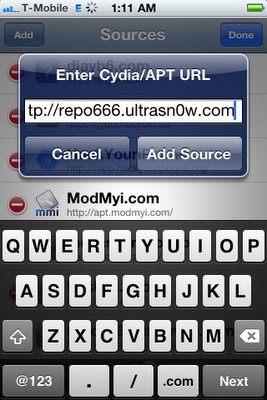
    • Now touch on Edit and then on Add. You will be prompted to enter the URL of the source. Type http://repo666.ultrasn0w.com and touch on Add Source to add this repository.

    Cydia will now automatically update your sources by following a series of automated steps.

    • After installation is completed. Search for “ultrasn0w 1.2.1” in Cydia and install this application. This app will automatically unlock your iPhone so that you can use it with any carrier.

    Step 3: Almost done, now simply reboot your iPhone and you should have a fully unlocked iPhone 3GS / 4 on iOS 4.3.1.

  • Apple Blows us Away with Smart Illuminated Bezel Details!


    Smart bezel patents from Apple are old news, but Patently Apple has discovered some blow-away details. Put simply, Apple is proposing a bezel that doubles as a secondary display built around a printed segmented electroluminescence technology:

    Apple intends to use the secondary display to introduce a set of new illuminated indicators that are able morph into various controls for work and play. Illuminated gaming and productivity controls could be built into the face-side of the bezel and/or selected back-side areas of iOS devices like the iPad.

    This opens up a whole new world of creative possibilities…

    The bezel running around iOS gadgets could be made touch sensitive, allowing users to tap the illuminated control to access common features such as media playback and game controls.

    The new smart bezel may not have a traditional home button. Well, below is an example of how that could look like using Apple’s display. Apple could create a very simple yet very cool illuminated home button that only appears when your hand approaches the home button area as shown below in a generic example that shows off this technology.

    If this patent ends up used in future iOS gadgets, expect easier, more convenient handling of everyday tasks. It’s sexy, there’s a substantial wow factor involved and it enhances the user experience in a Star Trek manner.

  • Unlock iOS 4.3.1 On iPhone 4 and 3GS With Ultrasn0w Fixer


    Ultrasn0w fixer for iOS 4.3.1 unlock on iPhone 4 and iPhone 3GS on older basebands. The fix is developed by msft_guy and iH8sn0w.

    Ultrasn0w was previously unable to unlock iPhone 4 and 3GS devices after untethered iOS 4.3.1 jailbreak. But now you can use Ultrasn0w 4.3.1 fixer to unlock your device. DO NOT take it as a new unlock tool, it can ONLY UNLOCK basebands 01.59.00 / 04.26.08 / 05.11.07 / 05.12.01 / 05.13.04 / 06.15.00.

    How to Guide To Use Ultrasn0w fixer for iOS 4.3.1 to Unlock iPhone 4 and 3GS:

    Step 0: You need to have a jailbroken iOS device in order for iOS 4.3.1 unlock to work. You can jailbreak your device using Redsn0w 0.9.6 RC9, PwnageTool 4.3 or Sn0wbreeze 2.5.

    Step 1: Launch Cydia in your jailbroken iPhone 4 or iPhone 3GS

    Step 2:  Navigate to “Manage” and then “Sources”

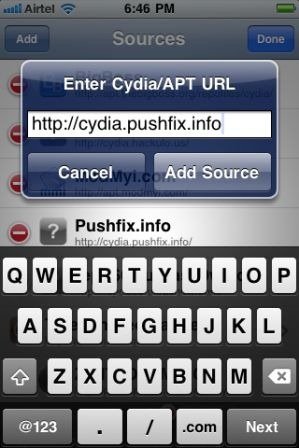
    Step 3: “Add” the repo: “http://cydia.pushfix.info”

    Step 4: Now press “Done”.

    Step 5: Now select  ”Pushfix.info” to Install it.

    Step 6: Once its done with installation. Go to Pushfix.info. Scroll down to find “Ultrasn0w fixer for 4.3.1”. Select and to install the package. After that it will restart your device.

    Your device is now unlocked on iOS 4.3.1 on basebands 01.59.00 / 04.26.08 / 05.11.07 / 05.12.01 / 05.13.04 / 06.15.00. DO NOT use it other than the mentioned basebands.