• Unlock iPhone 4 and iPhone 3GS on iOS 4.3.3 Using Ultrasn0w 1.2.3


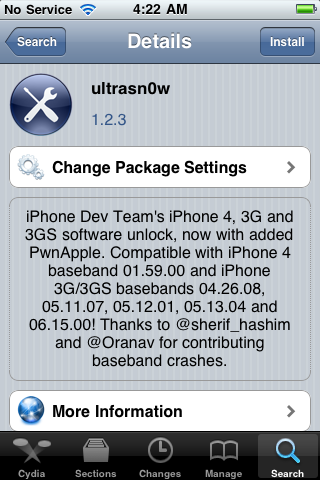
    Ultrasn0w 1.2.3 tool to unlock iPhone 4 and iPhone 3GS is now available. The unlock tool is fully compatible with iPhone 4 and 3GS devices running the latest iOS 4.3.3 firmware. It can NOT unlock higher basebands whose unlock is not possible right now. Its not a new unlock, it can only unlock lower basebands whose unlock was already possible but broken on iOS 4.3.3.

    Compatible basebands with Ultrasn0w 1.2.3

    iPhone 4: 01.59.00
    iPhone 3GS: 04.26.08 / 05.11.07 / 05.12.01 / 05.13.04 / 06.15.00

    DO NOT USE WITH the following basebands:

    iPhone 4: 02.10.04 / 03.10.01 / 04.10.01
    iPhone 3GS: 05.14.02 / 05.15.04 / 05.15.04 / 05.16.01 / 05.16.02

    Jailbreak your device on iOS 4.3.3 using:

    Unlock iOS 4.3.3 iPhone 4 and iPhone 3GS with Ultrasn0w 1.2.3 Guide:

    Step 1: Launch Cydia on your jailbroken iPhone.
    Step 2: Navigate to “Manage” and then “Sources”
    Step 3: Now “Edit” and then “Add”. Type the repo: “http://repo666.ultrasn0w.com”. Now “Add Source”
    Step 4: Once its done with installation, find “Ultrasn0w 1.2.3”. Select and to install the package. After that it will restart your device.

    Your device is now unlocked on iOS 4.3.3 on basebands 01.59.00 / 04.26.08 / 05.11.07 / 05.12.01 / 05.13.04 / 06.15.00.

  • iOS 4.3.3 Untethered Jailbreak Using PwnageTool 4.3.3.1 Guide


    PwnageTool 4.3.3.1 brings untethered jailbreak for iOS 4.3.3 on iPhone 4, iPhone 3GS, iPod Touch 4G, iPod touch 3G, iPad 1 and AppleTV. Its the same like Redsn0w 0.9.6rc16 but allows who rely on unlock to keep their old baseband on iOS 4.3.3 so that they can use ultrasn0w to unlock their devices later.

    A step by step guide on how to jailbreak iOS 4.3.3 untethered using PwnageTool 4.3.3.1 (Mac)

    Note: For Windows users you can follow our guide posted here (Redsn0w 0.9.6rc16) to get untethered jailbreak iOS 4.3.3

    Step 1: Run PwnageTool in “Expert mode” and then select the device you want to jailbreak.

    Step 2: Browse for iOS 4.3.3 IPSW firmware for your device.

    Step 3: Click on“Build” -as shown in the below screenshot- to start creating custom 4.3.3 firmware file

    Step 4: PwnageTool will now start building your custom 4.3.3 .ipsw file for your device

    Step 5: Now follow the following steps to enter DFU mode using PwnageTool:

    • Hold Power and Home buttons for 10 seconds
    • Now release the Power button but continue holding the Home button for 10 more seconds
    • You device should now be in DFU mode

    Step 5: Now restore your device to your pre-jailbroken custom 4.3.3 .ipsw files by doing this:

    Step 6: Start iTunes.

    Step 7: Click on your device icon from the sidebar in iTunes.

    Step 8: Press and hold left “alt” (option) button on Mac, or Left “Shift” button if you are on Windows on the keyboard and then click on “Restore” button in the iTunes and then release this button.
    Now iTunes asking you to select the location for your custom firmware 4.3.3 file. Select the pre-jailbroken custom 4.3.3 firmware .ipsw file, then click on “Open”.

    Step 9: iTunes will now restore the firmware on your iOS device. (this will take 10 minutes) then enjoy your untethered jailbreak on iOS 4.3.3

    Supported devices:

    • iPhone 4, 3GS
    • iPod Touch 4G, 3G
    • iPad 1 (Unfortunately iPad 2 still not supported)
    • Apple TV 2G.

    Required Downloads:

    Update:

    PwnageTool 4.3.3.1 updated to Fix Side Switch and Vibration Issues