• How To Unlock iPhone 4, 3GS on iOS 4.3.1 with Ultrasn0w 1.2.1


    iPhone Dev Team has released Ultrasn0w 1.2.1 unlock for iOS 4.3.1. The unlock tool can be used with iPhone 4 and iPhone 3GS. Its not a new unlock, it can only unlock lower basebands whose unlock was already possible but broken on iOS 4.3.1. Ultrsn0w 1.2.1 WILL NOT unlock higher basebands whose unlock is not possible right now.

    If you have upgraded to iOS 4.3.1 firmware and jailbroken you device with PwnageTool 4.3 or Sn0wbreeze 2.5 and requires an unlock then you can use Ultrasn0w 1.2.1.

    Compatible basebands with Ultrasn0w 1.2.1:

    iPhone 4: 01.59.00
    iPhone 3GS: 04.26.08 / 05.11.07 / 05.12.01 / 05.13.04 / 06.15.00

    DO NOT USE WITH the following basebands:

    iPhone 4: 02.10.04 / 03.10.01 / 04.10.01
    iPhone 3GS: 05.14.02 / 05.15.04 / 05.15.04 / 05.16.01 / 05.16.02

    Remember you need to have a jailbroken device with PwnageTool 4.3 and Sn0wbreeze 2.5.

    How To Guides for Untethered 4.3.1 Jailbreak on Windows & Mac
    How To Guides for Untethered 4.3.1 Jailbreak on Windows & Mac

    Step 1: You have to jailbreak your iPhone 4 / 3GS on iOS 4.3.1 with preserving your old baseband, follow this guide (PwnageTool 4.3 for Mac) or (Sn0wbreeze 2.5 Windows)

    Step 2: Once you jailbreak yoour device, you can now unlock your iPhone 4 / 3GS with Ultrasn0w 1.2.1 from Cydia. To do so, follow the steps below:

    • Press to launch Cydia Installer from your SpringBoard.
    • Press to select the Manage tab at the bottom of the screen.
    • Press to select the Sources button.
    • Now touch on Edit and then on Add. You will be prompted to enter the URL of the source. Type http://repo666.ultrasn0w.com and touch on Add Source to add this repository.
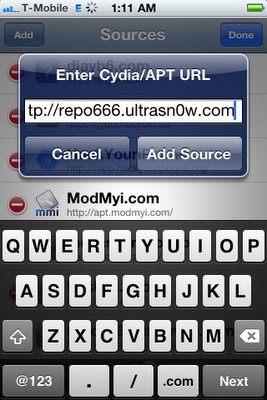
    Cydia will now automatically update your sources by following a series of automated steps.

    • After installation is completed. Search for “ultrasn0w 1.2.1” in Cydia and install this application. This app will automatically unlock your iPhone so that you can use it with any carrier.

    Step 3: Almost done, now simply reboot your iPhone and you should have a fully unlocked iPhone 3GS / 4 on iOS 4.3.1.
  • iOS 4.3.1 Untethered Jailbreak Using PwnageTool 4.3 for iPhone, iPod Touch and iPad


    As you know that iPhone dev-team has released PwnageTool 4.3 to bring untethered jailbreak for iOS 4.3.1. PwnageTool 4.3 untethered jailbreak is based on i0n1c’s untethered exploit. For Redsn0w 0.9.6rc9 users please check this tutorial.

    Note: For who is relying on unlock. Ultrasn0w 1.2 is broken on iOS 4.3.1. Wait for the Dev-Team to push new version of Ultrasn0w to unlock your iPhone (This is not new unlock, dev-team trying now to make ultrasn0w work on iOS 4.3.1 to unlock the already unlockable basebands ( 01.59.00 / 04.26.08 / 05.11.07 / 05.12.01 / 05.13.04 / 06.15.00))

    Importatnt: Before you start please learn how to prepare for the jailbreak and how to backup apps here

    Step 1: Download PwnageTool 4.3 for Mac.
    Step 2: Download iOS 4.3.1. Move PwnageTool and iOS 4.3.1 to desktop
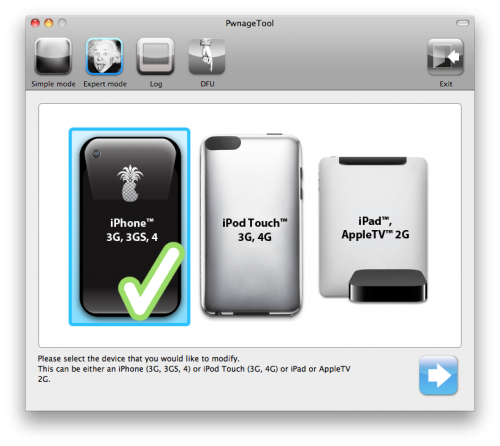
    Step 3: Start PwnageTool in “Expert mode” and then select your device:

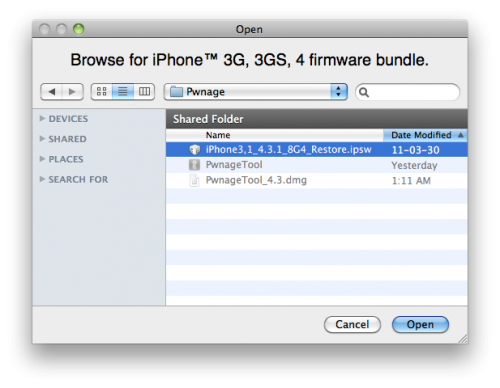
    Step 4: Browse for iOS 4.3.1 firmware for your device as shown in the screenshot below:

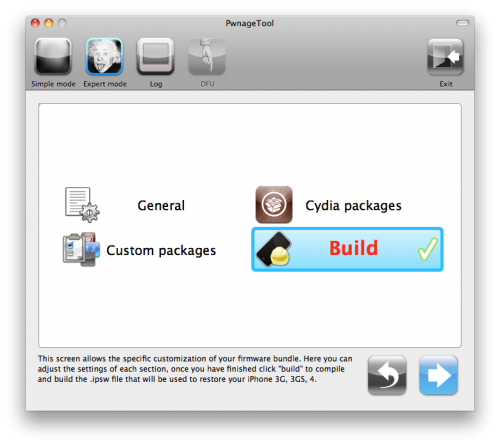
    Step 5: Now select “Build” to start creating custom 4.3.1 firmware file:

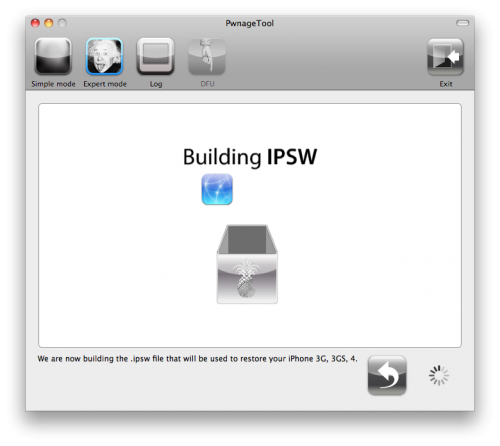
    Step 6: PwnageTool will now create the custom .ipsw file for your iPhone 4, 3GS, iPad or iPod touch 4G, 3G which will be jailbroken.


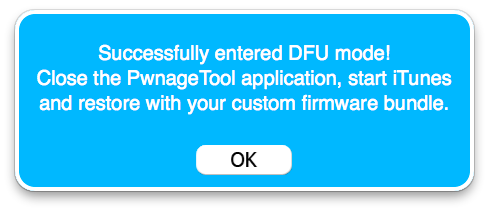
    Step 7: Now follow the following steps to enter DFU mode using PwnageTool:

    • Hold Power and Home buttons for 10 seconds
    • Now release the Power button but continue holding the Home button for 10 more seconds
    • You device should now be in DFU mode

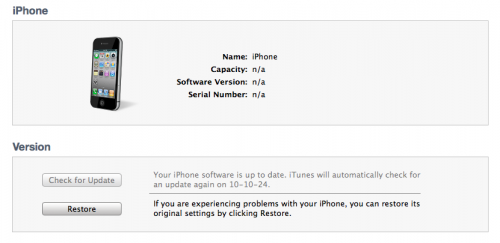
    Step 8: Start iTunes, click on your iOS device icon from the sidebar in iTunes. Now press and hold left “alt” (option) button on Mac, or Left “Shift” button if you are on Windows on the keyboard and then click on “Restore” (Not “Update” or “Check for Update”) button in the iTunes and then release this button.

    This will make iTunes prompt you to select the location for your custom firmware 4.3.1 file. Select the required custom .ipsw file that you created above, and click on “Open”.

    Step 9: iTunes will now restore the firmware on your iPhone. This can also take up to 10 minutes. Once done you will be rebooted into jailbroken iOS 4.3.1!

    Supported devices:

    • iPhone 4, 3GS
    • iPod Touch 4G, 3G
    • iPad 1 (Unfortunately iPad 2 still not supported)
    • Apple TV 2G.

    iOS 4.3.1 firmware DIRECT links below: