• All 66 Mac vs PC Campaign Ads


    The Mac vs PC Campaign ads were some of the most entertaining advertisements on TV with John Hodgman (being a PC) and Justin Long (being a Mac). Unfortunately Apple pulled the plug on the fun last year. However, Adweek has compiled all 66 ads for your viewing pleasure. and they are ordered chronologically. All 66 ads were directed by Phil Morrison of Epoch Films for TBWA Media Arts Lab.


    1. Better / May 2006.

    2. iLife / May 2006.

    3. Network / May 2006.

    4. Restarting / May 2006.

    5. Viruses / May 2006.

    6. Wall street Journal / May 2006.

    7. Out of the Box / June 2006.

    8. Toché / June 2006.

    9. Work vs. Home / June 2006.

    10. Accident / August 2006.

    11. Angel vs. Devil / August 2006.

    12. Trust Mac / August 2006.

    13. Better Results / October 2006.

    14. Counselor / October 2006.

    15. Self-pity / October 2006.

    16. Gift Exchange / November 2006.

    17. Meant for Work / November 2006.

    18. Sales Pitch / November 2006.

    19. Goodwill / December 2006.

    20. Sabotage /January 2007.

    21. Surgery / January 2007.

    22. tech Support / January 2007.

    23. Security / February 2007.

    24. Computer cart / April 2007.

    25. Flashback / April 2007.

    26. Stuffed / April 2007.

    27. Choose a Vista / May 2007.

    28. Genius / May 2007.

    29. Party is Over / May 2007.

    30. Boxer / November 2007.

    31. Podium / November 2007.

    32. PR Lady / November 2007.

    33. Misprint / December 2007.

    Note: Part 2 (the remaining 33 vids) will be posted soon
  • Can iPad Recreate The Magic of Microsoft Courier Using Taposé?


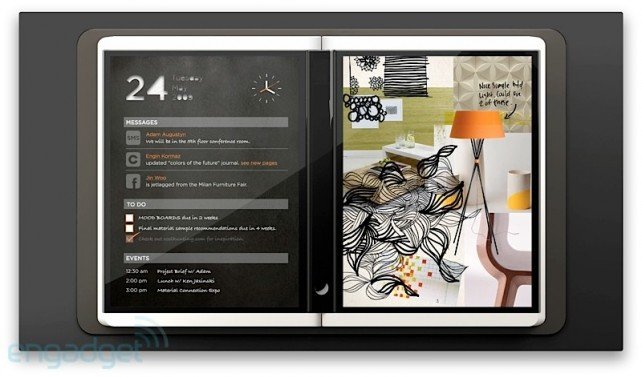
    We all remember Microsoft Courier, the highly anticipated but ultimately cancelled dual-screen tablet. Here is what GIZMODO had to say about the device:

    Courier is a real device, and we’ve heard that it’s in the “late prototype” stage of development. It’s not a tablet, it’s a booklet. The dual 7-inch (or so) screens are multitouch, and designed for writing, flicking and drawing with a stylus, in addition to fingers. They’re connected by a hinge that holds a single iPhone-esque home button. Statuses, like wireless signal and battery life, are displayed along the rim of one of the screens. On the back cover is a camera, and it might charge through an inductive pad, like the Palm Touchstone charging dock for Pre.

    Despite the fact that the Courier video about was little more than a tech demo, it turned heads like few other announcements in tech history. Part journal, part “digital scrapbook”, the Courier concept was everything Microsoft is least known for: enigmatic, magical, startlingly intuitive, strikingly beautiful.

    Part of what made Courier so exciting was how open-ended and freeform it was: it envisioned a future in which information is gathered, scattered, circled, captioned and written by hand, then tossed between the margins with (I imagine) a sort of da-Vinci-meets-Evernote bliss. It’s no surprise that, to many of us, Courier’s “death”—its entire existence a vaporware dream—was one of the sadder days in this industry.

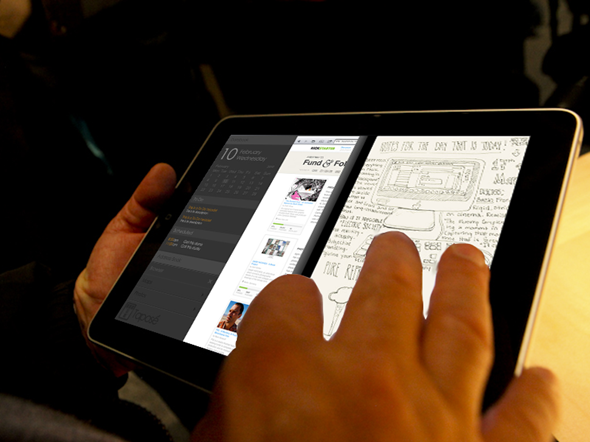
    But now, some measure of the “little notebook that could” is coming back. A Kickstarter project called Taposé aims to bring Courier-like functionality (including split views, drag-and-drop mapping and organizing, and the infamous “Middle Bar”) to the iPad. It’s too soon to tell exactly what features will be included, and of course, the Courier was designed for use with a pen, but the Taposé project has already received nearly $15,000 in funding, with another 19 days to go. That means the project is legitimate, it’s got capital, and it’s really happening!

    Head on over to Taposé to see more about what went into the elaborate re-imagining of what’s considered by many to be Microsoft’s best idea to date. Could our iPads recreate some of that magic?

    [via appadvice]

  • Microsoft Releases iPhone to Windows Phone 7 App Porting Tool


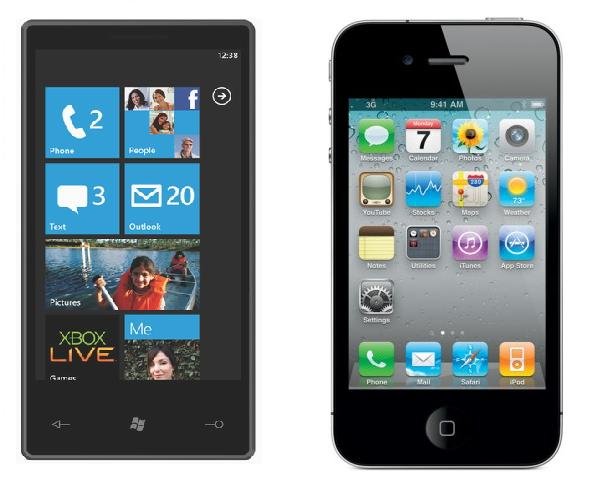
    In an effort to grow Marketplace one of Microsoft’s main strategies have been to make it easy for developers to bring their popular iPhone applications to Windows Phone 7. This comes an attempt to catch up with Apple App Store & Android Market that are full of quality applications.

    As WMPowerUser reports, Microsoft has now launched an iPhone/iOS to Windows Phone 7 API mapping tool to helps developers more easily translate their applications to the Windows phone 7 API. With this tool, iPhone developers can take their apps, pick out the iOS API calls, and quickly look up the equivalent classes, methods and notification events in WP7. A developer can search a given iOS API call and find the equivalent WP7 along with C# sample codes and API documentations for both platforms.

    Microsoft is also providing a 90+ pages “Windows Phone 7 Guide for iPhone Application Developers” white paper to get developers up and running.

    • Windows Phone API Mapping Tool can be downloaded from here.
  • How To Transform Windows 7 Into Windows 8


    Following our story on How to transform Windows 7 into Mac OS X Lion, here comes a new skin pack been created which contains many of the expected Windows 8 features. It has visual styles liked the leaked screenshots and third party apps that have been developed to provide users with the expected Windows 8 features. So if you would like to get the Windows 8 skin and small number of features today, try out 8 Skin Pack for 7.

    Note: Please bear in mind that such transformation packs are difficult to uninstall and often a system restore point will not revert the changes. Before installing 8SkinPackFor7, make sure that you backup your computer to revert the changes (if required). Moreover, make sure that UAC (User Account Control) is disabled.

    When installing the transformation pack, you will be presented with the option to install the UXTheme Patch, files and extra items (e.g. wallpaper, visual styles, third party software, etc). You may select all or some of these options to continue. For example, you may not be interested in installing a screensaver, wallpaper, or some third-party software. To uncheck these items, you can expand the options but clicking on the + sign to unselect items from the Files and Extras options. Click on Install to begin the installation process.

    This will install the selected components on your Windows 7 operating system. After the installation is complete, reboot your system for the changes to take effect.

    [via: addictivetips]