• How to Enable Multi-Touch Gestures in iOS 4.3.1 for iPhone 4 Using Cydia Hack


    We have previously showed you a way to enable multitouch gestures in iOS 4.3.1 using a manual method to SSH through the device but thanks to Cydia Hacks that can fix the issue and do all the dirty work on behalves of you. All you need is a jailbroken iPhone and make sure, currently the tweak only works with iPhone 4 and iPod touch 4G.

    Step 1: Search for MT Gestures via ModMyi repo

    Step 2: Install / respring and its done

    You can now do the following three gestures using four or five fingers:

    • Pinch to home screen
    • Swipe up for Multitasking bar
    • Swipe left/right to switch apps.
  • How to Enable Multi-Touch Gestures in iOS 4.3.1 for iPhone 4, iPod Touch and iPad


    Remember the four and five finger multi-touch gestures shown off by Apple in the iOS 4.3 Beta for iPad. However, these features were only meant for the developers and never made it to the final public release of iOS 4.3.

    Now, there is a way to enable multitouch gestures in iOS 4.3.1. All you need is a jailbroken iPhone 4/3GS, iPod Touch or iPad running iOS 4.3.1 and some tweaking.

    We will be editing some plist files in this tutorial. Windows users can use plist editor while Mac users can use TextWrangler. If you have Xcode installed then no need for an additional application. I’ll be using iFile app which is available on Cydia.

    There is a simple tweak available in Cydia which you can simply search for and run check it out here

    Instructions:

    Step 1:

    Navigate to Root > var > mobile > Library > Preferences > com.apple.springboard.plist

    Copy this file to your computer and add the following two lines of code:

    <key>SBUseSystemGestures</key>
    <true/>

    Step 2:

    Navigate to Root > System > Library > CoreServices > SpringBoard.app > N90AP.plist

    Update: N90AP.plist exists on iPhone 4 only. The corresponding file for iPhone 3GS is N88AP.plist, iPod Touch is N81AP.plist and for iPad K48AP.plist. Usually, there’s just one of this file’s kind in the specified folder, so it should not be very difficult to identify.

    Add the following two lines:

    <key>multitasking-gestures</key>
    <true/>

    That’s it. We’re done. After you have saved these edit files put them back in their locations and restart or respring your iOS device for the changes to take effect.

    You can now do the following three gestures using four fingers, though in my opinion the iPhone or iPod Touch screens are too small for these many fingers.

    • Pinch to home screen
    • Swipe up for Multitasking bar
    • Swipe left/right to switch apps.
  • Unlock iOS 4.3.1 On iPhone 4 and 3GS With Ultrasn0w Fixer


    Ultrasn0w fixer for iOS 4.3.1 unlock on iPhone 4 and iPhone 3GS on older basebands. The fix is developed by msft_guy and iH8sn0w.

    Ultrasn0w was previously unable to unlock iPhone 4 and 3GS devices after untethered iOS 4.3.1 jailbreak. But now you can use Ultrasn0w 4.3.1 fixer to unlock your device. DO NOT take it as a new unlock tool, it can ONLY UNLOCK basebands 01.59.00 / 04.26.08 / 05.11.07 / 05.12.01 / 05.13.04 / 06.15.00.

    How to Guide To Use Ultrasn0w fixer for iOS 4.3.1 to Unlock iPhone 4 and 3GS:

    Step 0: You need to have a jailbroken iOS device in order for iOS 4.3.1 unlock to work. You can jailbreak your device using Redsn0w 0.9.6 RC9, PwnageTool 4.3 or Sn0wbreeze 2.5.

    Step 1: Launch Cydia in your jailbroken iPhone 4 or iPhone 3GS

    Step 2:  Navigate to “Manage” and then “Sources”

    Step 3: “Add” the repo: “http://cydia.pushfix.info”

    Step 4: Now press “Done”.

    Step 5: Now select  ”Pushfix.info” to Install it.

    Step 6: Once its done with installation. Go to Pushfix.info. Scroll down to find “Ultrasn0w fixer for 4.3.1”. Select and to install the package. After that it will restart your device.

    Your device is now unlocked on iOS 4.3.1 on basebands 01.59.00 / 04.26.08 / 05.11.07 / 05.12.01 / 05.13.04 / 06.15.00. DO NOT use it other than the mentioned basebands.

  • iOS 4.3.1 Untethered Jailbreak Using PwnageTool 4.3 for iPhone, iPod Touch and iPad


    As you know that iPhone dev-team has released PwnageTool 4.3 to bring untethered jailbreak for iOS 4.3.1. PwnageTool 4.3 untethered jailbreak is based on i0n1c’s untethered exploit. For Redsn0w 0.9.6rc9 users please check this tutorial.

    Note: For who is relying on unlock. Ultrasn0w 1.2 is broken on iOS 4.3.1. Wait for the Dev-Team to push new version of Ultrasn0w to unlock your iPhone (This is not new unlock, dev-team trying now to make ultrasn0w work on iOS 4.3.1 to unlock the already unlockable basebands ( 01.59.00 / 04.26.08 / 05.11.07 / 05.12.01 / 05.13.04 / 06.15.00))

    Importatnt: Before you start please learn how to prepare for the jailbreak and how to backup apps here

    Step 1: Download PwnageTool 4.3 for Mac.
    Step 2: Download iOS 4.3.1. Move PwnageTool and iOS 4.3.1 to desktop
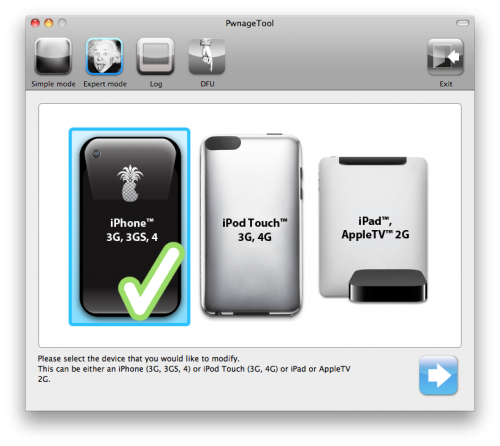
    Step 3: Start PwnageTool in “Expert mode” and then select your device:

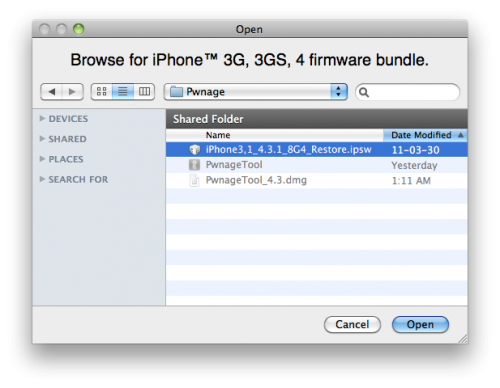
    Step 4: Browse for iOS 4.3.1 firmware for your device as shown in the screenshot below:

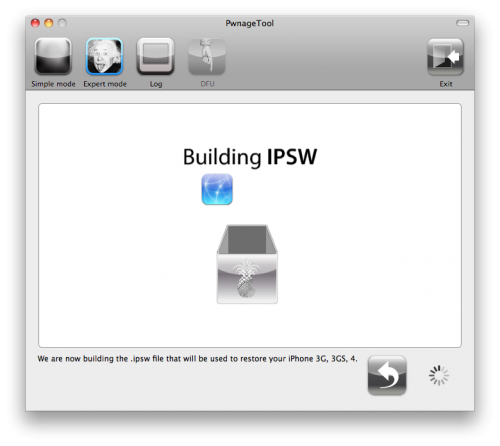
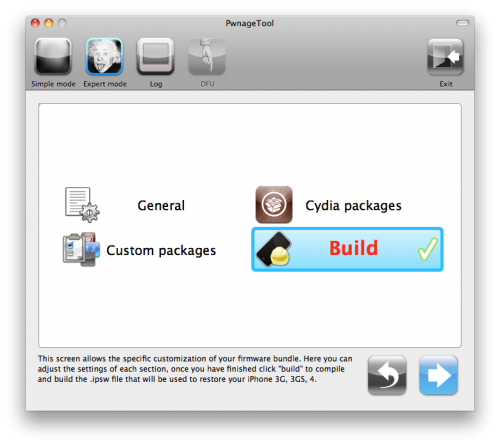
    Step 5: Now select “Build” to start creating custom 4.3.1 firmware file:

    Step 6: PwnageTool will now create the custom .ipsw file for your iPhone 4, 3GS, iPad or iPod touch 4G, 3G which will be jailbroken.


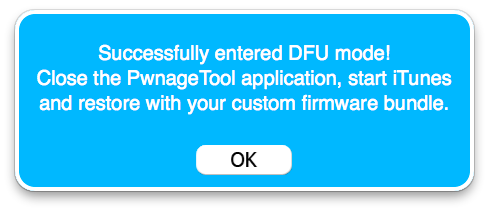
    Step 7: Now follow the following steps to enter DFU mode using PwnageTool:

    • Hold Power and Home buttons for 10 seconds
    • Now release the Power button but continue holding the Home button for 10 more seconds
    • You device should now be in DFU mode

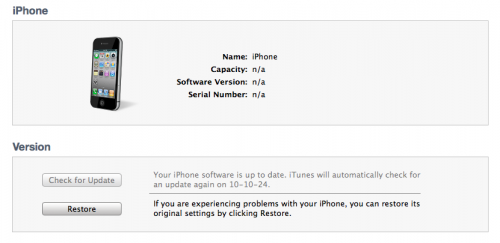
    Step 8: Start iTunes, click on your iOS device icon from the sidebar in iTunes. Now press and hold left “alt” (option) button on Mac, or Left “Shift” button if you are on Windows on the keyboard and then click on “Restore” (Not “Update” or “Check for Update”) button in the iTunes and then release this button.

    This will make iTunes prompt you to select the location for your custom firmware 4.3.1 file. Select the required custom .ipsw file that you created above, and click on “Open”.

    Step 9: iTunes will now restore the firmware on your iPhone. This can also take up to 10 minutes. Once done you will be rebooted into jailbroken iOS 4.3.1!

    Supported devices:

    • iPhone 4, 3GS
    • iPod Touch 4G, 3G
    • iPad 1 (Unfortunately iPad 2 still not supported)
    • Apple TV 2G.

    iOS 4.3.1 firmware DIRECT links below: