• Will Carling, the iPad detective


    How would you feel if you found an iPad on a train and took it home, only to find a near-six-foot tall rugby player (think, American football for seriously tough guys) hammering on your door, demanding it back? That’s precisely what happened yesterday when UK sports celebrity and former England rugby captain, Will Carling, OBE, left his iPad on the train. Fortunately he had MobileMe’s Find My iPhone feature enabled, so he was able to find his device — and he wrote all about it on Twitter. I caught up with him to chat about what happened next.

    “At first I thought: ‘leaving it on the train, you idiot! That’s that then,'” Carling (45) told me. But a funny thing had happened one month before.

    “I was having lunch with a friend. He was telling me this story of how his iPad had been stolen from his kit bag at the gym. He hadn’t enabled the tracking feature on it, so he couldn’t find it. I asked him if tracking worked, and he said, ‘Yes, very well’, so we set it up on my iPad over lunch.”

    Carling was captain of England between 1988 to 1996, winning 72 caps. He’s an incredibly keen Twitter user, with over 45,000 followers. He’s a keen blogger, too.

    Carling uses Macs at home — his two eldest kids are “Apple obsessives” and the family share a “big-screen iMac” in the kitchen. “I think Apple make great bits of kit,” he says, “they’re great looking.” It’s not all Apple love, though — he prefers his BlackBerry to an iPhone.

    For the last six months he’s been using his iPad to keep up with business, for email, to check news reports, business correspondence using DropBox, and, erm, Angry Birds. “I’m obsessed with Angry Birds,” he told me.

    Tracking it down

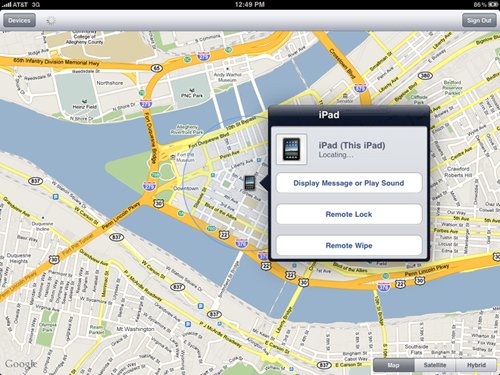
    Annoyed at his stupidity on leaving his Apple device on the train, Carling thought he’d give the tracking feature a try. He logged in to MobileMe and, after about a minute, a map popped up with a blue dot showing him where his iPad was.”
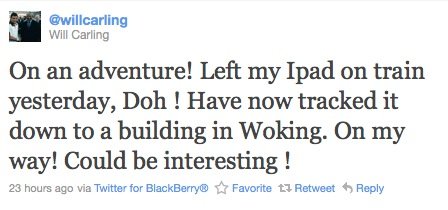
    “It was a hundred yards from Woking train station,” he said, admitting he thought it was a lost property office at first. “When I got there I found it was a block of flats (apartment block) and I thought, ‘Hmm, this will be slightly more interesting.” Oblivious to consequences, Carling set off to track his iPad down.

    The former rugby player got inside the block (“I didn’t break in,” he stressed), and knocked at each of the 18 doors inside. “Not one person answered the door,” he said, though he laughed when asked how he might react if a mid-40’s, near six-foot tall tough guy hammered at his front door.
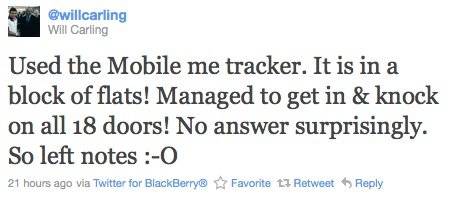
    He left notes under the door of all 18 apartments, asking for the return of his property, drove home and logged in once again, watching his iPad on the map.

    The iPad detective

    “Five minutes later I saw it start to move,” he told me. “It was bizarre,” he said.

    Talking to his Twitter horde, he wrote, “Breaking news! My iPad has moved! It is now at the station! This is like Enemy of the State !!” He’d called the cops to inform them his iPad had gone missing at this point, and began sending messages to the device.
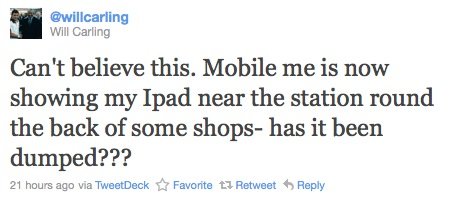
    Carling panicked a little when he saw his iPad taking a route down the alley behind some shops, “I wondered if it had been dumped,” he said. He sent the iPad a message telling whoever had the device that they were being tracked along with the police crime reference number.

    Apple’s Find My iPhone/iPad solution doesn’t just track your device on the map, it also lets you send messages to the device which pop up on its screen, even if it is locked. You can even use the technology to erase the data on your lost gadget in order to preserve your confidential data.

    Carling didn’t need to do this. His message seemed to work. Ten minutes later and Carling could see the iPad moving toward the police station, “Feel like a real spy”, he Tweeted. “It was really quite weird watching it move across town on the screen on my Mac,” he said.
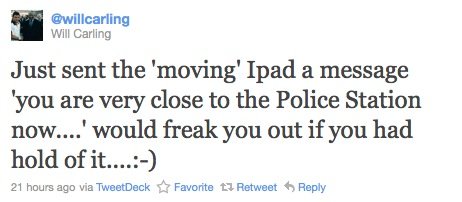
    Eager to offer a little positive reinforcement, and perhaps a little excited at the ability to send scary messages to whoever had hold of his device, he sent another, “You are very close to the Police Station now.” A few minutes later the police called Carling to let him know his iPad had been handed in. An hour passed and, “just picked up iPad. Big thanks to [the police and] MobileMe,” he Tweeted.

    “Are you going to be more careful in future, or did you enjoy the chase so much you might just start leaving it around for the thrill of it?” I asked him.

    “Loads of people on Twitter were saying, ‘go on, lose it again, it was very entertaining,'” he said, “But I’ll be more careful next time.”

    Better than Android?

    This is great for the iPad and the iPhone, but it does raise the question — why does Apple not yet offer a similar service to track down lost Macs? The technology to achieve this already exists, so it can be done. If anyone at Apple were listening, I’d observe that many MacBook Pro owners would see a service like that as enough to justify an annual subscription to MobileMe.

    Android owners, I’ve had a look for similar solutions for your devices. I can’t seem to find any with the same simple power. Most just send you a text with geographical coordinates when you ask for them. You don’t get the real-time view or facility to delete data or message your device.

    What would you have done if you’d received these messages on your iPad?

    [via: Jonny Evans]
  • Google Translate for iOS released


    Google just released their native translation app for iOS (iTunes download) which allows you to speak translations and hear results.

    OK, this is friggen awesome!  details, below:

    Speak to translate
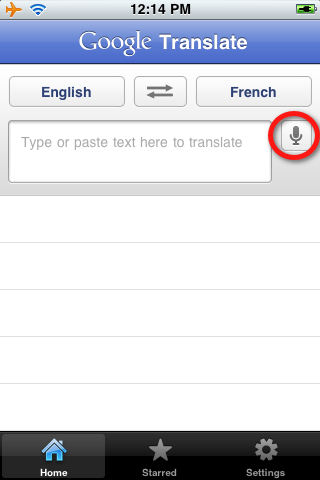
    The new app accepts voice input for 15 languages, and—just like the web app—you can translate a word or phrase into one of more than 50 languages. For voice input, just press the microphone icon next to the text box and say what you want to translate.

    Listen to your translations
    You can also listen to your translations spoken out loud in one of 23 different languages. This feature uses the same new speech synthesizer voices as the desktop version of Google Translate we introduced last month.

    Full-screen mode
    Another feature that might come in handy is the ability to easily enlarge the translated text to full-screen size. This way, it’s much easier to read the text on the screen, or show the translation to the person you are communicating with. Just tap on the zoom icon to quickly zoom in.

    And the app also includes all of the major features of the web app, including the ability to view dictionary results for single words, access your starred translations and translation history even when offline, and support romanized text like Pinyin and Romaji.

    Get it here.

  • Fix All Greenpois0n RC5 Untethered iOS 4.2.1 Jailbreak Issues


    Chronic Dev Team has released Greenposi0n RC5 to do an untethered iOS 4.2.1 jailbreak on iPhone, iPad and iPod Touch. Most of the users have successfully jailbroken their devices. Few of them are facing some issues and errors. Here is a complete guide to fix all problems you are facing.

    First of all you need to have a clean iOS 4.2.1 installation before you run Greenpois0n jailbreak tool.

    PROBLEM 1: Stuck due to “Greenpois0n initialized” error.

    SOLUTION: Simply just download “Greenpois0n RC5_2“

    PROBLEM 2: While installing Cydia, Greenpois0n Loader crashed.

    SOLUTION: The Greenpois0n Loader will only work when greenpois0n.com website will come online. The site is down because too many visitors tried to access it and the web server is unable to handle that amount of requests. It will be live very soon. Till that time you can follow below steps after jailbreaking using greenpois0n. You have to use Redsn0w to install Cydia after using Greenpois0n.

    1. Switch off your iDevice and open Redsn0w 0.9.7b6.
    2. The only option that should be checked is ‘Install Cydia’.
    3. Follow the instructions to in Cydia and thats it.

    PROBLEM 3: Using Greenpois0n to jailbreak iOS 4.2.1 results in the “FAILED” Error

    SOLUTION:

    1. You must use Greenpois0n RC5_2
    2. Your iDevice must be connected to your MAC.
    3. Open the TERMINAL, type in ‘cd Desktop’ (without quotes) and press Enter.
    4. Now type in ‘open Greenpois0n.app/Contents/MacOS/greenpois0n’ (without quotes) and press Enter. It will result in a new window and Greenpois0n will be started.
    5. Follow the self explanatory instructions to put your device in DFU mode. The jailbreak process will start.
    6. After it is jailbroken, a greenpois0n Loader will be there now. This is to let you install Cydia.

    If the loader is crashed or not appearing etc. Follow the steps below.

    1. Switch off your iDevice and open Redsn0w 0.9.7b6.
    2. The only option that should be checked is ‘Install Cydia’.
    3. Follow the instructions to in Cydia and thats it.

    PROBLEM 4: The screen of iDevice goes blank after jailbreaking. Still in DFU mode.

    SOLUTION: You have to leave your device as it is for almost 2 minutes. Now press and keep on holding the home and power button simultaneously for almost 10 to 15 seconds until your device boots normally.

    PROBLEM 5: Errors: Unable to find fs_mount, Unable to find fs_unmount ,Unable to find fs_load_file

    SOLUTION: Properly connect your iDevice. You must have your device ‘Switched Off’ when you connect, otherwise these errors will come.

    PROBLEM 6: When i launch Greenpois0n tool, it opens and closes immediately

    SOLUTION: Reason is that the Greenpois0n RC5 tool by default do not run on Mac OS X 10.5.x (till now). It tries to access version 6.0.0 of libcurl.4.dylib but as you are trying to run it on the 5.0.0, so it closes immediately. You can fix this by doing:

    1. Download file from the link libcurl.4.dylib v6.0.0
    2. Unzip the downloaded file.
    3. Now run the Terminal.app
    4. Type in the prompt: “sudo rm /usr/lib/libcurl.4.dylib” (without quotes)
    5. Enter the password and press Enter.
    6. Type in the prompt: “sudo cp ~/Downloads/libcurl.4.dylib /usr/lib” (without quotes)
    7. Now close the Terminal.app and Run the greenpois0n tool via

    If you have missed the guides to jailbreak using Greenpois0n then follow the below links.

    [via: VeryRite]

  • Greenpois0n RC5 iOS 4.2.1 Untethered Jailbreak for Windows Released


    As promised, Chronic Dev Team has just released Greenpois0n iOS 4.2.1 untethered jailbreak for Windows for iPhone 4G, 3GS, iPod touch 4G, 3G, 2G and iPad.

    You can follow our Mac guide, it’s the same exactly, check the full step by step guide.

    Download GreenPois0n for Windows
    Download iOS 4.2.1 for iPhone 4, 3GS, iPod touch 4G, 3G, 2G and iPad