• How To Downgrade From iOS 5 To iOS 4.X Guide


    Well you had to do it didn’t you. You just had to taste that infamous iOS 5 beta and now you have been cast from many stuff you used to in the previous version, don’t worry! We are here to help bring you back from the abyss!

    Prerequisites:

    1. The IPSW of choice (I would recommend 4.3.3) as no need to roll back further. Just make sure you have your SHSH stored with Cydia if you choose to go older then 4.3.3).
    2. TinyUmbrella. Just download the version that will work for your system.
    3. iTunes 10.5 beta. You should have this already as you needed it to install 5.0 beta

    How To Downgrade From iOS 5 To iOS 4.X Guide:

    1. Open iTunes
    2. Plug in your device
    3. Enter DFU mode
      • Turn device off
      • Hold power button for 3 seconds
      • Without releasing power button, hold down home button for 10 seconds
      • Release power button, but continue to hold the home button until iTunes recognizes your iPhone in recovery mode. If you did it right, it should just have a black screen with no connect to iTunes logo.
    4. Hold down the option key / shift on windows and click the restore button in iTunes
    5. Browse to wherever you have your IPSW saved and select it.
    6. iTunes will give you some warning, just click the flashing ok button.
    7. Sit back while your computer is working.
    8. If you are using an iPhone 4, you should be done. If not, you have received some sort of error more then likely. This is normal. Open TinyUmbrella and click the exit from restore button.
    9. YOUR DONE!!!

    Note:

    if you have changed your host file for cydia, you have to change it back to use this guide. TinyUmbrella will do this for you in the advanced tab.

  • Nuance Might Have Exposed The iPhone 5 Beans


    Interesting screenshots from Nuance’s new SpeechTrans Ultimate App. Nuance is widely believed to be working deeply with Apple on their speech recognition technology so maybe they know something.  Or maybe they just pasted screenshots that were too big on their App?!

  • iPad 3 Retina Display Graphics Found in iOS 5 SDK


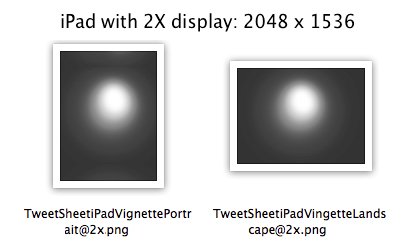
    iPad with Retina Display was much rumored earlier this year, iPad 2X graphics were found in the iBooks application and were immediately assumed to be for the iPad 2, which does not include a Retina display once unveiled.

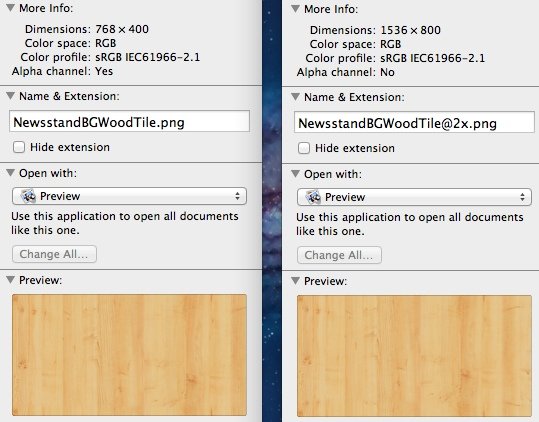
    Now, the guys at TechUnwrapped digging deep inside the new iOS 5 SDK have found images marked with 2X making the new iPad capable of displaying 2048 x 1536 resolution on its display (four times the pixels) of the current iPad (1024 x 768) this pushes the speculation further more as this is not apparently for pure testing purposes. The image below from Newsstand app.

    As iOS 5 is the base for the next generation iPhone and iPad it does make sense that the new iPad will get a really Retina display after all

  • iOS 5 Tethered Jailbreak Using Sn0wbreeze 2.8 Guide


    Sn0wbreeze 2.8 beta 2 (a.k.a PwnageTool for Windows) brings tethered jailbreak for iOS 5 on iPhone 4, iPhone 3GS (New Bootrom), iPod Touch 4G, iPod touch 3G, & iPad 1. It brings Untethered jailbreak for iPhone 3GS (Old Bootrom).

    A step by step guide on how to jailbreak iOS 5 Beta tethered using Sn0wbreeze 2.8 (Windows)

    Notes:

    • For Redsn0w you can follow our guide posted here (Redsn0w 0.9.8) to get tethered jailbreak iOS 5.
    • For iPhone 3GS (Old Bootrom) its Untethered.

    Step 1: Start Sn0wbreeze, click the next “blue” arrow to proceed.

    Step 2: Select the required firmware .ipsw file for your iOS device by clicking on the “Browse” button.

    Step 3: Sn0wbreeze will now identify the selected IPSW file. Once done, click the next “blue” colored arrow to proceed.

    Step 4: Now select the “Expert Mode”, followed by “Build IPSW” option to start creating your custom firmware.

    Step 5: Sn0wbreeze will greet you with the following “Done!” message when the custom firmware has been successfully created.

    Step 6: Now follow the onscreen steps to enter DFU mode using Sn0wbreeze:

    • Hold Power and Home buttons for 10 seconds
    • Now release the Power button but continue holding the Home button for 10 more seconds
    • You device should now be in DFU mode

    Step 7: Start iTunes, click on your iOS device icon from the sidebar in iTunes. Now press and hold Left “Shift” button on the keyboard and then click on “Restore” (Not “Update” or “Check for Update”) button in iTunes and then release this button. This will make iTunes prompt you to select the location for your custom firmware 5 file. Select the required custom .ipsw file that you created above, and click on “Open”.

    Step 8: Now sit back and let iTunes do the rest for you. This will involve a series of automated steps. Just wait while iTunes installs the new firmware 5 on your iOS device. Your iOS device screen at this point will be showing a progress bar indicating installation progress. After the installation is done, your iOS device will be jailbroken on iOS 5.

    Required Downloads: