• iOS 5 Tethered Jailbreak Using Redsn0w 0.9.8 Guide


    Redsn0w updated to bring tethered jailbreak for iOS 5 on iPhone 4, iPhone 3GS, iPod touch 4G, iPod touch 3G and iPad. No Jailbreak for iPad 2 yet.

    A step by step guide on how to jailbreak iOS 5 beta tethered using Redsn0w 0.9.8 (Mac & Win)

    Notes:

    1. If you rely on ultrasn0w unlock don’t use Redsn0w and don’t try iOS 5 at all.
    2. You must have a developer account with Apple or you have your UDID registered by a developer account. More details here.

    Step 1: Download iOS 5 for iPhone, iPad or iPod touch (download links at the end).

    Step 2: Restore to iOS 5 in case you haven’t yet using the IPSW file you just downloaded via iTunes 10.5 Beta.

    Step 3: Start Redsn0w and point it to the official iOS 5 firmware file.

    Step 4: Now select “Install Cydia” and click “Next”. Optionally (if available), you can also select any other option you like.

    Step 5: Now make sure your device is both OFF and PLUGGED IN to the computer before you click “Next”.

    Now you will be guided on how to enter DFU mode. Quickly hold “Power” button and then while holding the “Power” button, you will now have to hold “Home” button too. Now after few seconds release “Power” button but keep holding “Home” button until installation begins.

    Step 6: Wait until you get tethered iOS 5 jailbroken in few minutes.

    Furthermore, iSpazio reports a first list of compatible and not working tweaks on iOS 5 beta 1:

    Working

    • iFile
    • CyDelete
    • OpenSSH
    • iSHSHit

    Not Working

    • MobileSubstrate
    • Springtomize
    • PhotoMail
    • ActionMenu
    • Celeste
    • BiteSMS
    • WinterBoard
  • iOS 4.3.3 Untethered Jailbreak Using Greenpois0n, iPad 2 Jailbreak Latest Updates


    Chronic Dev Team has issued an update regarding 4.3.3 Jailbreak status. The upcoming Greenpois0n RC6.2 will be capable of jailbreaking iOS 4.3.3 on iPhone iPad and iPod Touch. iPad 2 jailbreak status is not quite clear as they are no details and no ETA yet. Joshua Hill aka posixninja is currently working on it:

    As I’m sure many people have heard, Josh (posixninja) has recently been quoted saying the iPad 2 jailbreak is coming in “weeks”, I know I have been very publicly abrasive and non-commital on giving any kind of timeframe or comment on this matter, but at the behest of Josh (in conjunction with his need for a swift kick to the ass for motivation) we’re ALL going to hold him to that!!! I’m not going to get into extensive detail about this, but what I will say one of the missing puzzle pieces may have reared its head and cast a glance in our direction… take from that what you will.

    Greenpois0n RC 6.2 is coming soon to jailbreak iOS 4.3.3 untethered for iPhone, iPad  and iPod Touch.

    In the past I have also said that 4.3.x support was on hold for greenpois0n to focus on iPad 2 jailbreak exclusively, our course has slightly changed (primary focus has never shifted from iPad 2 since it was released) it has now become possible to easily update and execute a workflow to enable RC6.2 (tentatively speaking… mmm #dirt) to be released “soon”…

    Greenpois0n RC 6.2 will be a simpler one to use comparatively. Still you can jailbreak iOS 4.3.x with the already present tools which you can find below.

    iOS 4.3.3 Untethered Jailbreak Using Redsn0w 0.9.6rc16 Guide

    iOS 4.3.3 Untethered Jailbreak Using PwnageTool 4.3.3.1 Guide

    iOS 4.3.3 Untethered Jailbreak Using Sn0wbreeze 2.7.1 Guide

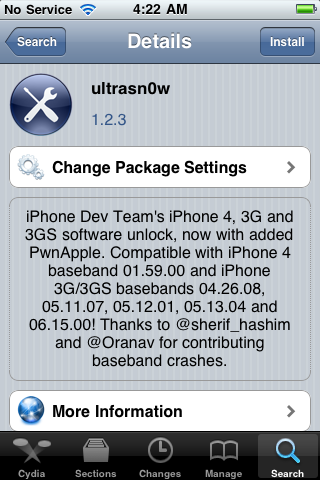
  • Unlock iPhone 4 and iPhone 3GS on iOS 4.3.3 Using Ultrasn0w 1.2.3


    Ultrasn0w 1.2.3 tool to unlock iPhone 4 and iPhone 3GS is now available. The unlock tool is fully compatible with iPhone 4 and 3GS devices running the latest iOS 4.3.3 firmware. It can NOT unlock higher basebands whose unlock is not possible right now. Its not a new unlock, it can only unlock lower basebands whose unlock was already possible but broken on iOS 4.3.3.

    Compatible basebands with Ultrasn0w 1.2.3

    iPhone 4: 01.59.00
    iPhone 3GS: 04.26.08 / 05.11.07 / 05.12.01 / 05.13.04 / 06.15.00

    DO NOT USE WITH the following basebands:

    iPhone 4: 02.10.04 / 03.10.01 / 04.10.01
    iPhone 3GS: 05.14.02 / 05.15.04 / 05.15.04 / 05.16.01 / 05.16.02

    Jailbreak your device on iOS 4.3.3 using:

    Unlock iOS 4.3.3 iPhone 4 and iPhone 3GS with Ultrasn0w 1.2.3 Guide:

    Step 1: Launch Cydia on your jailbroken iPhone.
    Step 2: Navigate to “Manage” and then “Sources”
    Step 3: Now “Edit” and then “Add”. Type the repo: “http://repo666.ultrasn0w.com”. Now “Add Source”
    Step 4: Once its done with installation, find “Ultrasn0w 1.2.3”. Select and to install the package. After that it will restart your device.

    Your device is now unlocked on iOS 4.3.3 on basebands 01.59.00 / 04.26.08 / 05.11.07 / 05.12.01 / 05.13.04 / 06.15.00.

  • iOS 4.3.3 Untethered Jailbreak Using Sn0wbreeze 2.7.1 Guide


    Sn0wbreeze 2.7.1 (a.k.a PwnageTool for Windows) brings untethered jailbreak for iOS 4.3.3 on iPhone 4, iPhone 3GS, iPod Touch 4G, iPod touch 3G, & iPad 1. It allows who rely on unlock to keep their old baseband on iOS 4.3.3 so that they can use ultrasn0w to unlock their devices later.

    A step by step guide on how to jailbreak iOS 4.3.3 untethered using Sn0wbreeze 2.7.1 (Windows)

    Note: For Redsn0w you can follow our guide posted here (Redsn0w 0.9.6rc16) to get untethered jailbreak iOS 4.3.3. For PwnageTool you can check the post here (PwnageTool 4.3.3.1).

    Step 1: Start Sn0wbreeze, click the next “blue” arrow to proceed.

    Step 2: Select the required firmware .ipsw file for your iOS device by clicking on the “Browse” button.

    Step 3: Sn0wbreeze will now identify the selected IPSW file. Once done, click the next “blue” colored arrow to proceed.

    Step 4: Now select the “Expert Mode”, followed by “Build IPSW” option to start creating your custom firmware.

    Step 5: Sn0wbreeze will greet you with the following “Done!” message when the custom firmware has been successfully created.

    Step 6: Now follow the onscreen steps to enter DFU mode using Sn0wbreeze:

    • Hold Power and Home buttons for 10 seconds
    • Now release the Power button but continue holding the Home button for 10 more seconds
    • You device should now be in DFU mode

    Step 7: Start iTunes, click on your iOS device icon from the sidebar in iTunes. Now press and hold Left “Shift” button on the keyboard and then click on “Restore” (Not “Update” or “Check for Update”) button in iTunes and then release this button. This will make iTunes prompt you to select the location for your custom firmware 4.3.3 file. Select the required custom .ipsw file that you created above, and click on “Open”.

    Step 8: Now sit back and let iTunes do the rest for you. This will involve a series of automated steps. Just wait while iTunes installs the new firmware 4.3.3 on your iOS device. Your iOS device screen at this point will be showing a progress bar indicating installation progress. After the installation is done, your iOS device will be jailbroken on iOS 4.3.3.

    Required Downloads:

    Update:

    Sn0wbreeze 2.7.1 updated to fix Silent and Mute Button issues