• iPhone 4S Coming in September With Minor Cosmetic Changes?


    Citing a new report from Forbes, analyst Peter Misek, claims the upcoming next generation iPhone will likely has minor cosmetic changes over the current iPhone 4, the device will be dubbed “iPhone 4S” and will debut in September. Misek also claims that Apple will add more supported carriers including Sprint and T-Mobile and China Mobile on the way.

    According to our industry checks, the device should be called iPhone 4S and include minor cosmetic changes, better cameras, A5 dual-core processor, and HSPA+ support,” he writes in a research note.

    But he also says that “industry checks indicate Apple will likely announce Sprint, T-Mobile, and China Mobile as new carriers.

    We previously learned that Apple has been providing an improved iPhone with A5 chip to some select developers for testing purposes and since them the name “iPhone 4S” has gained popularity.

    Misek went on to say that Qualcomm are not yet available in quantity to be added, so faster LTE 4G networks will not be available.

    As for LTE, he says the Qualcomm LTE chipset Apple would have used “is currently not achieving yields sufficient for inclusion in the iPhone 5.” He says Apple had hoped to have the LTE chipsets ready, but was planning a version without LTE called iPhone 4S.

  • Twitter Announces Redesigned Mobile Web App


    Twitter has just announced an updated mobile version for their web app, a redesigned experience on iPhone with seamless interaction allows to quickly scroll through your timeline, move between tabs and compose Tweets. The new app will show up selectively for some lucky users.

    We want you to be able to access Twitter no matter where you are; regardless of what device you use; or, whether you prefer to access Twitter through a mobile application or the browser. Today, we’re starting to roll out a new version of twitter.com for mobile devices. This web app allows us to provide a high-quality and consistent Twitter experience on high-end touchscreen devices – whether or not an official Twitter application is available. It was built from the ground up for smartphones and tablets, which have more advanced browsers that support the latest web technologies, including HTML5.

    The app is fast – you can quickly scroll through your timeline, move between tabs and compose Tweets. It’s rich – it takes advantage of capabilities that high-end device browsers offer, such as touch gestures and a large screen. And it’s simple – it’s easy-to-use and has the features you’d expect from a Twitter application, including your timeline, @mentions, messages that you can read in conversation view, search, trending topics, lists, and more.

    We are releasing this application today to a small percentage of users on iPhone, iPod Touch, and Android smartphones, and we’ll be rolling it out to additional folks with those devices in the coming weeks. You can use Twitter on your phone’s browser by going to twitter.com. If you don’t yet have access to the new web app, you’ll still be able to use the existing version of twitter.com for mobile browsers.

  • Unlock iPhone 4 and iPhone 3GS on iOS 4.3.3 Using Ultrasn0w 1.2.3


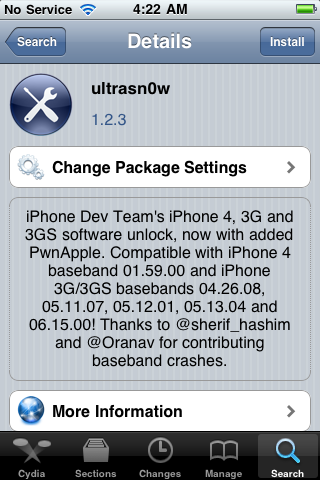
    Ultrasn0w 1.2.3 tool to unlock iPhone 4 and iPhone 3GS is now available. The unlock tool is fully compatible with iPhone 4 and 3GS devices running the latest iOS 4.3.3 firmware. It can NOT unlock higher basebands whose unlock is not possible right now. Its not a new unlock, it can only unlock lower basebands whose unlock was already possible but broken on iOS 4.3.3.

    Compatible basebands with Ultrasn0w 1.2.3

    iPhone 4: 01.59.00
    iPhone 3GS: 04.26.08 / 05.11.07 / 05.12.01 / 05.13.04 / 06.15.00

    DO NOT USE WITH the following basebands:

    iPhone 4: 02.10.04 / 03.10.01 / 04.10.01
    iPhone 3GS: 05.14.02 / 05.15.04 / 05.15.04 / 05.16.01 / 05.16.02

    Jailbreak your device on iOS 4.3.3 using:

    Unlock iOS 4.3.3 iPhone 4 and iPhone 3GS with Ultrasn0w 1.2.3 Guide:

    Step 1: Launch Cydia on your jailbroken iPhone.
    Step 2: Navigate to “Manage” and then “Sources”
    Step 3: Now “Edit” and then “Add”. Type the repo: “http://repo666.ultrasn0w.com”. Now “Add Source”
    Step 4: Once its done with installation, find “Ultrasn0w 1.2.3”. Select and to install the package. After that it will restart your device.

    Your device is now unlocked on iOS 4.3.3 on basebands 01.59.00 / 04.26.08 / 05.11.07 / 05.12.01 / 05.13.04 / 06.15.00.

  • iOS 4.3.3 Untethered Jailbreak Using Sn0wbreeze 2.7.1 Guide


    Sn0wbreeze 2.7.1 (a.k.a PwnageTool for Windows) brings untethered jailbreak for iOS 4.3.3 on iPhone 4, iPhone 3GS, iPod Touch 4G, iPod touch 3G, & iPad 1. It allows who rely on unlock to keep their old baseband on iOS 4.3.3 so that they can use ultrasn0w to unlock their devices later.

    A step by step guide on how to jailbreak iOS 4.3.3 untethered using Sn0wbreeze 2.7.1 (Windows)

    Note: For Redsn0w you can follow our guide posted here (Redsn0w 0.9.6rc16) to get untethered jailbreak iOS 4.3.3. For PwnageTool you can check the post here (PwnageTool 4.3.3.1).

    Step 1: Start Sn0wbreeze, click the next “blue” arrow to proceed.

    Step 2: Select the required firmware .ipsw file for your iOS device by clicking on the “Browse” button.

    Step 3: Sn0wbreeze will now identify the selected IPSW file. Once done, click the next “blue” colored arrow to proceed.

    Step 4: Now select the “Expert Mode”, followed by “Build IPSW” option to start creating your custom firmware.

    Step 5: Sn0wbreeze will greet you with the following “Done!” message when the custom firmware has been successfully created.

    Step 6: Now follow the onscreen steps to enter DFU mode using Sn0wbreeze:

    • Hold Power and Home buttons for 10 seconds
    • Now release the Power button but continue holding the Home button for 10 more seconds
    • You device should now be in DFU mode

    Step 7: Start iTunes, click on your iOS device icon from the sidebar in iTunes. Now press and hold Left “Shift” button on the keyboard and then click on “Restore” (Not “Update” or “Check for Update”) button in iTunes and then release this button. This will make iTunes prompt you to select the location for your custom firmware 4.3.3 file. Select the required custom .ipsw file that you created above, and click on “Open”.

    Step 8: Now sit back and let iTunes do the rest for you. This will involve a series of automated steps. Just wait while iTunes installs the new firmware 4.3.3 on your iOS device. Your iOS device screen at this point will be showing a progress bar indicating installation progress. After the installation is done, your iOS device will be jailbroken on iOS 4.3.3.

    Required Downloads:

    Update:

    Sn0wbreeze 2.7.1 updated to fix Silent and Mute Button issues