Apple has released iOS 5.1 first beta for iPhone, iPad and iPod Touch. This is a beta version intended for for developers only. Apple has also released Xcode 4.3 which you can download from iOS Dev Center.
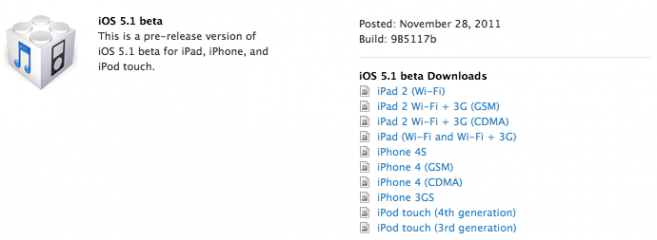
iOS 5.1 Beta 1 for iPhone, iPad & iPod Touch Available for Download
Introduction
iOS SDK 5.1 provides support for developing iOS applications and includes the complete set of Xcode tools, compilers, and frameworks for creating applications for iOS and Mac OS X. These tools include the Xcode IDE and the Instruments analysis tool among many others.
With this software you can develop applications that run on iPhone, iPad, or iPod touch running iOS 5.1. You can also test your applications using the included iOS Simulator, which supports iOS 5.1. There are two Xcode iOS SDK 5.1 images, one for installing on a Macintosh computer running Mac OS X 10.6.7 (Snow Leopard) or later, the other for installing on a Macintosh computer running Mac OS X 10.7 (Lion).
This version of iOS is intended only for installation on devices registered with Apple’s developer program. Attempting to install this version of iOS in an unauthorized manner could put your device in an unusable state.
For more information and additional support resources, visit:
http://developer.apple.com/programs/ios/
Bug Reporting
Please report any bugs not mentioned in the “Introduction†section using the Apple Bug Reporter on the Apple Developer website (http://developer.apple.com/bugreporter/). Additionally, you may discuss these issues and iOS SDK 5 in the Apple Developer Forums: http://devforums.apple.com. You can also access more information about iCloud for Developers at: http://developer.apple.com/icloud
Notes and Known Issues
The following issues relate to using the 5.1 SDK to develop code.
Accounts
When creating an iCloud account, you can use any Apple ID as long as it is a full email address and not a MobileMe account. If you have a MobileMe account, you can move that account to iCloud. You can find more information at: http://me.com/moveAPIs
The NSNetService class and CFNetService APIs do not include P2P interfaces by default. To browse, register, or resolve services over P2P interfaces, an application needs to use the Bonjour DNSService*() APIs noted below.
Setting the interfaceIndex parameter to kDNSServiceInterfaceIndexAny in the following API’s will not include P2P interfaces by default. To include P2P interfaces, you must now set the kDNSServiceFlagsIncludeP2P flag when using kDNSServiceInterfaceIndexAny or set the interfaceIndex to kDNSServiceInterfaceIndexP2P. The affected APIs are:
DNSServiceBrowse
DNSServiceRegister
DNSServiceResolve
DNSServiceRegisterRecord
DNSServiceQueryRecord
GameKit
App Icons and Profile Photos are not loading in apps using Game Center.iCloud Storage
Provisioning profiles must be enabled for iCloud in the iOS Provisioning Portal. You can enable a provisioning profile for iCloud by navigating to the App ID section of the iOS Provisioning Portal and configuring your App ID for iCloud. After enabling the App ID for iCloud, regenerate your provisioning profiles to enable them for iCloud.
The setSortDescriptors: method of NSMetadataQuery is not supported.
In iOS 5, files that are protected via Data Protection cannot be used with iCloud Storage APIs.
File names are case-insensitive in Mac OS X but case-sensitive in iOS. This can lead to problems when sharing files between the two using iCloud. You should take steps on iOS to avoid creating files whose names differ only by case.
Movie Player
Starting in iOS 5.0, in order to facilitate finer-grained playback control, a movie player is not automatically prepared to play upon creation. Call the prepareToPlay method to prepare the movie player. For more information, see MPMoviePlayerController Class ReferenceMusic Player
Using shake-to-shuffle causes Music app to freeze and playback to stop.Newsstand
FIXED: Deleting an issue that was marked as the currently reading issue could cause a crash.Security
In iOS 5, the signing of certificates with MD5 signatures is not supported. Please ensure that certificates use signature algorithms based on SHA1 or SHA2.Xcode/Developer Tools
A bug in the documentation organizer causes an exception when you type in any field in the content area. To prevent the need to log in to the developer website from Xcode, download documentation sets locally using Xcode’s documentation preference pane and enable the ‘Check for and install updates automatically’ checkbox as a workaround.
“uninstall-devtools†script mistakenly removes files and packages even if Xcode is still running. Be sure to quit any running copy of Xcode before starting the “uninstall-devtools†script.
The Network Link Conditioner daemon cannot be launched after installing the Networking Link Conditioner without a reboot. You can manually workaround the issue with a restart or by the following command: sudo launchctl load /system/library/launchdaemons/com.apple.networklinkconditioner.plist.]
In the iOS 5 development tools, it is possible to extract APIs used by an application and have them checked for use of private APIs. This option is offered when you validate your application for app submission.