• Microsoft To Acquire Skype For $8.5 Billion


    Following The WSJ report tonight which shows Microsoft, in what would be its most aggressive acquisition in the digital space, was getting closer on buying the online telephony and video communications giant Skype for $8.5 billion all in with an assumption of the company’s debt–$686 million.

    Kara of AllThingsD has confirmed the deal is actually done and will be announced early tomorrow morning.

    The purchase is a bold move for the software giant and its biggest acquisition in more than three decades.

    The big price will give Microsoft–which has struggled in its online efforts and has lost billions of dollars for its work–a big brand name on the Web.

    With Skype, which has been aggressively expanding, Microsoft will continue to lose money in its Internet efforts. Skype lost $7 million on revenue of $860 million. Operating profits, which Skype highlighted, were $264 million.

    But, sources said, the concept is bigger than just money, including getting access to Skype’s 663 million registered users.

    Skype has had a big-company owner before–eBay Inc. paid $2.6 billion in cash and stock for it in 2005, as a way for the auction site’s buyers and sellers to communicate.

    Facebook and Nokia seemed to be interested in the acquisition too:

    Other suitors have looked at Skype, including Google, although acquisition interest by Facebook was very much overblown, said several sources.

    Interestingly, Microsoft’s new smartphone partner Nokia also held meetings with Skype’s CEO Tony Bates, a former Cisco exec who arrived at the company relatively recently.

    Update:

    The deal confirmed by Microsoft

  • All 66 Mac vs PC Campaign Ads


    The Mac vs PC Campaign ads were some of the most entertaining advertisements on TV with John Hodgman (being a PC) and Justin Long (being a Mac). Unfortunately Apple pulled the plug on the fun last year. However, Adweek has compiled all 66 ads for your viewing pleasure. and they are ordered chronologically. All 66 ads were directed by Phil Morrison of Epoch Films for TBWA Media Arts Lab.


    1. Better / May 2006.

    2. iLife / May 2006.

    3. Network / May 2006.

    4. Restarting / May 2006.

    5. Viruses / May 2006.

    6. Wall street Journal / May 2006.

    7. Out of the Box / June 2006.

    8. Toché / June 2006.

    9. Work vs. Home / June 2006.

    10. Accident / August 2006.

    11. Angel vs. Devil / August 2006.

    12. Trust Mac / August 2006.

    13. Better Results / October 2006.

    14. Counselor / October 2006.

    15. Self-pity / October 2006.

    16. Gift Exchange / November 2006.

    17. Meant for Work / November 2006.

    18. Sales Pitch / November 2006.

    19. Goodwill / December 2006.

    20. Sabotage /January 2007.

    21. Surgery / January 2007.

    22. tech Support / January 2007.

    23. Security / February 2007.

    24. Computer cart / April 2007.

    25. Flashback / April 2007.

    26. Stuffed / April 2007.

    27. Choose a Vista / May 2007.

    28. Genius / May 2007.

    29. Party is Over / May 2007.

    30. Boxer / November 2007.

    31. Podium / November 2007.

    32. PR Lady / November 2007.

    33. Misprint / December 2007.

    Note: Part 2 (the remaining 33 vids) will be posted soon

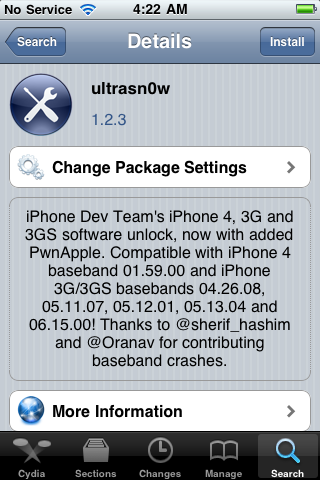
  • Unlock iPhone 4 and iPhone 3GS on iOS 4.3.3 Using Ultrasn0w 1.2.3


    Ultrasn0w 1.2.3 tool to unlock iPhone 4 and iPhone 3GS is now available. The unlock tool is fully compatible with iPhone 4 and 3GS devices running the latest iOS 4.3.3 firmware. It can NOT unlock higher basebands whose unlock is not possible right now. Its not a new unlock, it can only unlock lower basebands whose unlock was already possible but broken on iOS 4.3.3.

    Compatible basebands with Ultrasn0w 1.2.3

    iPhone 4: 01.59.00
    iPhone 3GS: 04.26.08 / 05.11.07 / 05.12.01 / 05.13.04 / 06.15.00

    DO NOT USE WITH the following basebands:

    iPhone 4: 02.10.04 / 03.10.01 / 04.10.01
    iPhone 3GS: 05.14.02 / 05.15.04 / 05.15.04 / 05.16.01 / 05.16.02

    Jailbreak your device on iOS 4.3.3 using:

    Unlock iOS 4.3.3 iPhone 4 and iPhone 3GS with Ultrasn0w 1.2.3 Guide:

    Step 1: Launch Cydia on your jailbroken iPhone.
    Step 2: Navigate to “Manage” and then “Sources”
    Step 3: Now “Edit” and then “Add”. Type the repo: “http://repo666.ultrasn0w.com”. Now “Add Source”
    Step 4: Once its done with installation, find “Ultrasn0w 1.2.3”. Select and to install the package. After that it will restart your device.

    Your device is now unlocked on iOS 4.3.3 on basebands 01.59.00 / 04.26.08 / 05.11.07 / 05.12.01 / 05.13.04 / 06.15.00.

  • iOS 4.3.3 Untethered Jailbreak Using Sn0wbreeze 2.7.1 Guide


    Sn0wbreeze 2.7.1 (a.k.a PwnageTool for Windows) brings untethered jailbreak for iOS 4.3.3 on iPhone 4, iPhone 3GS, iPod Touch 4G, iPod touch 3G, & iPad 1. It allows who rely on unlock to keep their old baseband on iOS 4.3.3 so that they can use ultrasn0w to unlock their devices later.

    A step by step guide on how to jailbreak iOS 4.3.3 untethered using Sn0wbreeze 2.7.1 (Windows)

    Note: For Redsn0w you can follow our guide posted here (Redsn0w 0.9.6rc16) to get untethered jailbreak iOS 4.3.3. For PwnageTool you can check the post here (PwnageTool 4.3.3.1).

    Step 1: Start Sn0wbreeze, click the next “blue” arrow to proceed.

    Step 2: Select the required firmware .ipsw file for your iOS device by clicking on the “Browse” button.

    Step 3: Sn0wbreeze will now identify the selected IPSW file. Once done, click the next “blue” colored arrow to proceed.

    Step 4: Now select the “Expert Mode”, followed by “Build IPSW” option to start creating your custom firmware.

    Step 5: Sn0wbreeze will greet you with the following “Done!” message when the custom firmware has been successfully created.

    Step 6: Now follow the onscreen steps to enter DFU mode using Sn0wbreeze:

    • Hold Power and Home buttons for 10 seconds
    • Now release the Power button but continue holding the Home button for 10 more seconds
    • You device should now be in DFU mode

    Step 7: Start iTunes, click on your iOS device icon from the sidebar in iTunes. Now press and hold Left “Shift” button on the keyboard and then click on “Restore” (Not “Update” or “Check for Update”) button in iTunes and then release this button. This will make iTunes prompt you to select the location for your custom firmware 4.3.3 file. Select the required custom .ipsw file that you created above, and click on “Open”.

    Step 8: Now sit back and let iTunes do the rest for you. This will involve a series of automated steps. Just wait while iTunes installs the new firmware 4.3.3 on your iOS device. Your iOS device screen at this point will be showing a progress bar indicating installation progress. After the installation is done, your iOS device will be jailbroken on iOS 4.3.3.

    Required Downloads:

    Update:

    Sn0wbreeze 2.7.1 updated to fix Silent and Mute Button issues