• Google Announces Voice Search, Search by Image, and Instant Pages For Desktop Computers


    Google announced a bunch of new features at Inside Search press conference, June 14th, 2011, which took place yesterday. The new additions are voice search on desktop computers, Instant Search and Image Search.

    Voice Search on the desktop

    Google Voice Search has been available in phones for years. Both Android handset and iPhone via Google’s search app have that feature for a long time, and now the same capability is brought to the desktop and initially, to the Chrome.

    Search by Image

    With this feature you can now upload images straight to the search engine and Google will search through the image file and attempt to locate any similar images and return you the terms they’re associated with:

    If you click the camera, you can upload any picture or plug in an image URL from the web and ask Google to figure out what it is. Try it out when digging through old vacation photos and trying to identify landmarks

    Google has released an extension for Chrome and Firefox that lets users identify any picture on the web by simply right-clicking.

    Instant Pages

    Google is bringing Instant Pages to Google Chrome. Available in all of the beta and dev versions of Google Chrome, Instant Pages is Google’s answer to the pre-fetching features built in to Mozilla’s Firefox. Instead of simply scraping basic HTML information ahead of time, however, Google says that their pre-rendering will grab other resources as well such as Javascript for snappy page loading. Instant Pages are only being used for search results (not targeted for ads specifically), but Google did mention they’ll be looking at how to best deliver ads to consumers in the future. Instant Pages allow the most common results to load instantly (in virtually zero seconds) when the user decides to load them:

    Google pointed out that mobile searches on its site have grown and now surpassed desktop searches.

    [via Google’s Blog]

  • New TV Spot for Transformers: Dark of the Moon Titled ‘Always Feared’


    Michael Bay has released a new TV Spot for Transformers: Dark of the Moon titled ‘Always Feared’. This time airing on BET and MTV2, the video showing pretty new footage. Watch the clip right here:

    The movie directed by Michael Bay and starring Shia LaBeouf, Josh Duhamel, Tyrese Gibson, John Malkovich, Patrick Dempsey, John Turturro and Rosie Huntington-Whiteley. The voice cast includes Leonard Nimoy and Hugo Weaving.

    Official Synopsis:

    The Autobots, led by Optimus Prime, are back in action, taking on the evil Decepticons, who are determined to avenge their defeat in 2009’s Transformers Revenge of the Fallen. In this new movie, the Autobots and Decepticons become involved in a perilous space race between the U.S. and Russia, and once again human Sam Witwicky has to come to the aid of his robot friends. There’s new characters too, including a new villain in the form of Shockwave, a longtime “Transformers” character who rules Cybertron while the Autobots and Decepticons battle it out on Earth.

    Leadfoot

    Roadbuster


    Dark of the Moon is set to be released in 3D, 2D and IMAX theaters on June 29. Check out all of our Transformers coverage HERE.

  • iOS 5 Tethered Jailbreak Using Sn0wbreeze 2.8 Guide


    Sn0wbreeze 2.8 beta 2 (a.k.a PwnageTool for Windows) brings tethered jailbreak for iOS 5 on iPhone 4, iPhone 3GS (New Bootrom), iPod Touch 4G, iPod touch 3G, & iPad 1. It brings Untethered jailbreak for iPhone 3GS (Old Bootrom).

    A step by step guide on how to jailbreak iOS 5 Beta tethered using Sn0wbreeze 2.8 (Windows)

    Notes:

    • For Redsn0w you can follow our guide posted here (Redsn0w 0.9.8) to get tethered jailbreak iOS 5.
    • For iPhone 3GS (Old Bootrom) its Untethered.

    Step 1: Start Sn0wbreeze, click the next “blue” arrow to proceed.

    Step 2: Select the required firmware .ipsw file for your iOS device by clicking on the “Browse” button.

    Step 3: Sn0wbreeze will now identify the selected IPSW file. Once done, click the next “blue” colored arrow to proceed.

    Step 4: Now select the “Expert Mode”, followed by “Build IPSW” option to start creating your custom firmware.

    Step 5: Sn0wbreeze will greet you with the following “Done!” message when the custom firmware has been successfully created.

    Step 6: Now follow the onscreen steps to enter DFU mode using Sn0wbreeze:

    • Hold Power and Home buttons for 10 seconds
    • Now release the Power button but continue holding the Home button for 10 more seconds
    • You device should now be in DFU mode

    Step 7: Start iTunes, click on your iOS device icon from the sidebar in iTunes. Now press and hold Left “Shift” button on the keyboard and then click on “Restore” (Not “Update” or “Check for Update”) button in iTunes and then release this button. This will make iTunes prompt you to select the location for your custom firmware 5 file. Select the required custom .ipsw file that you created above, and click on “Open”.

    Step 8: Now sit back and let iTunes do the rest for you. This will involve a series of automated steps. Just wait while iTunes installs the new firmware 5 on your iOS device. Your iOS device screen at this point will be showing a progress bar indicating installation progress. After the installation is done, your iOS device will be jailbroken on iOS 5.

    Required Downloads:

  • JailbreakMe 3.0 For iPad 2 Jailbreak is Imminent?


    iPad 2 is the only device left without jailbreak or accurately Apple’s A5 processor-based architecture in iPad 2 and later iPhone 4S/5 seems a hard puzzle to solve. The Limera1n exploit, which worked on A4-based iOS devices like iPod touch 4G and iPhone 4, is hardware-based and, since iPad 2 is A5-based, the exploit doesn’t work on it. And so the community has to find an all-new exploit this time around.

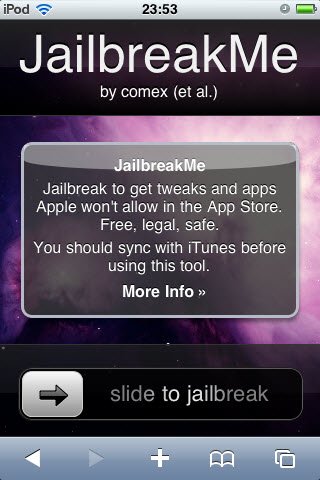
    iPhone hacker Comex and his JailbreakMe tool, which worked on a userland exploit, used to jailbreak iOS 4.0/4.0.1 with a very simple method of “slide to jailbreak” bar and Comex’s tool did the rest. However the exploit was later patched in iOS 4.0.2.

    Today, Comex has updated his website for the tool JailbreakMe. The updated page teases an image:

    The image shows a signboard with the word “PDF” written on top of it. this is might be pointing towards a potential PDF-based exploit. however its highly likely the new tool would work on iPad 2. Comex teased a lot of tweets:

    We just pin our hopes for an untethered jailbreak for iPad 2 as well as other iOS devices on iOS 5 which is set to release this fall.