• How To Jailbreak iOS 5 On Your iPhone 4, 3GS, iPad or iPod Touch Using Redsn0w


    iOS 5 gets tethered jailbroken using Redsn0w

    iPhone Dev Team has released an updated version of Redsn0w jailbreak tool. The new Redsn0w 0.9.9b5 that can jailbreak iOS 5

    Important Notes:

    • Its a tethered jailbreak
    • Supported devices: iPhone4, iPhone 3GS, iPad 1 and iPod Touch 3G and iPod Touch 4G.
    • iPhone 4S and iPad 2 are NOT supported yet.
    • iBooks will crash and not be working after the jailbreak.

    NOTE: Before you follow the below guide to jailbreak your device, you need to know that the following process is NOT for those who want to preserve their baseband for the Unlock. I’ll be putting another guide for that and the ability to preserve the baseband using custom ipsw.

    How To Jailbreak iOS 5 on iPhone, iPad & iPod Touch

    Please backup all your information using iTunes before following this tutorial.

    1. Double-click to open redsn0w application. for Windows users right-click and choose open as administrator.


    2. Click the ‘Jaibreak’ button below the text. Now it will ask you to connect the device to your Mac/PC and then turn it off, do so and click ‘Next’. Now follow the on-screen instructions to proceed.


    3. The device will reboot while redns0w prepares the jailbreak data.


    4. Then choose Cydia and click the ‘Next’ button.

    6. The device will reboot showing ‘Downloading Jailbreak Data’ logo and then some code on the device’s screen, while redsn0w sends modified files to the device. You will be notified once redsn0w is done. Let the rest of process continue on the device, please be patient.


    7. After it reboots, your device should now be jailbroken with Cydia on the homescreen. If Cydia appears like a white icon reboot the device as below

    8. For booting up tethered, open redsn0w and click the “Extras” button below the jailbreak button.

    9. Select “Just Boot” from the “Extras” menu.

    10. You have to again enter the DFU mode then it automatically it will boot your device.

    That’s it!

  • Box.net Offers iOS Users 50GB Of Free Cloud Storage


    Box.net offers 50GB of free storage to iOS users

    Box.net has announced they are offering a promotional free 50GB of storage to iOS users, beginning at 12:01 PM PST Friday, October 14th. up to the next 50 days. Cool ha?!

    Follow these steps:

    1. Use your iPhone, iPad or iPod touch to visit the App Store and download the App.
    2. Log in to your account or register for a new one directly from the app.
    3. That’s it

    On top of 50GB of free storage, accounts will receive an increased file size limit of 100MB instead of 25MB. Box.net has over 7 million users, and the app was recently updated to support iOS 5. That means the app supports AirPlay.

    The 50GB of storage is ten times what Apple’s iCloud service offers users for free, and is being offered free with no strings attached. A comparable amount of storage on DropBox would cost $9.99 per month, and a comparable amount of storage through Apple’s iCloud service would cost $100 per year.

    Box.net can be used to store photos, documents, videos, music, or other digital files safely on Box.net’s servers.

  • iOS 5 iPhone, iPad, iPod Touch, Apple TV Direct Download Links Repository


    iOS 5 Release log

    Apple today released the final consumer version of iOS 5, a major and most ambitious upgrade to its mobile operating system yet. Apple has also released Find My Friends and AirPort Utility apps, enabled iCloud accounts for everyone, flipped the switch on the Newsstand Store and rolled out music re-downloading service dubbed iTunes in the Cloud in the U.K., Canada, Australia and other international markets. The iOS 5 packed with over 200 new features.

    You’re advised to perform a full backup of your iOS device in iTunes to restore to in case something goes wrong. Simply connect your device to a computer, launch iTunes 10.5, right click the device in the Devices pane and click the Back Up option.

    Alternatively, copy the backup folder to a safe location, such as an external hard drive or a USB thumb drive. iTunes places the backup files in the following places:

    Mac: ~/Library/Application Support/MobileSync/Backup/

    Windows XP: \Documents and Settings\(username)\Application Data\Apple Computer\MobileSync\Backup\

    Windows Vista and Windows 7: \Users\(username)\AppData\Roaming\Apple Computer\MobileSync\Backup\

    device current version date found
    AppleTV(2G) (AppleTV2,1)
    4.4 (9A334v)
    10/12/2011 13:16:01
    iPad (iPad1,1)
    5.0 (9A334)
    10/12/2011 13:16:01
    iPad2,1 (iPad2,1)
    5.0 (9A334)
    10/12/2011 13:16:01
    iPad2,2 (iPad2,2)
    5.0 (9A334)
    10/12/2011 13:16:01
    iPad2,3 (iPad2,3)
    5.0 (9A334)
    10/12/2011 13:16:01
    iPhone (iPhone1,1)
    3.1.3 (7E18)
    04/08/2010 21:05:48
    iPhone3G (iPhone1,2)
    4.2 (8C148)
    11/22/2010 13:08:57
    iPhone3GS (iPhone2,1)
    5.0 (9A334)
    10/12/2011 13:16:01
    iPhone4 (iPhone3,1)
    5.0 (9A334)
    10/12/2011 13:16:01
    iPhone4(vz) (iPhone3,3)
    5.0 (9A334)
    10/12/2011 13:16:01
    iPhone4,1 (iPhone4,1)
    5.0 (9A334)
    10/12/2011 13:16:01
    iPodTouch(2G) (iPod2,1)
    4.2 (8C148)
    11/22/2010 13:08:57
    iPodTouch(3G) (iPod3,1)
    5.0 (9A334)
    10/12/2011 13:16:01
    iPodTouch(4G) (iPod4,1)
    5.0 (9A334)
    10/12/2011 13:16:01
    last updated: 10/12/2011 13:40:02 EDT
  • iTunes 10.5 Released Prior to iOS 5.0


    iTunes 10.5

    iTunes 10.5

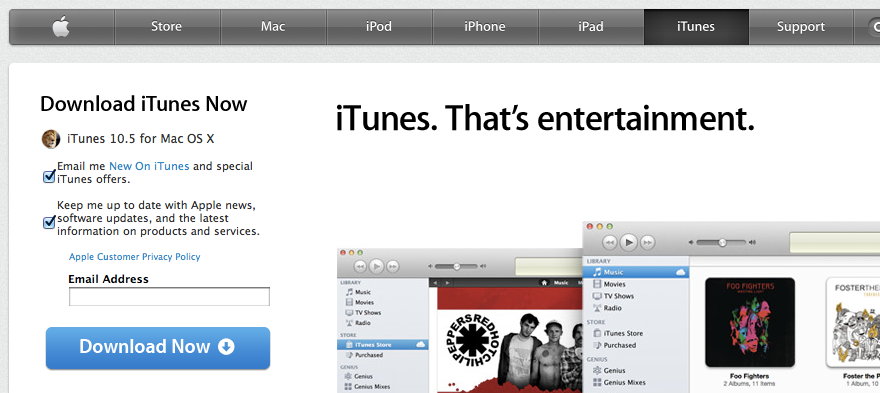
    Apple today released iTunes 10.5 for all platforms in advance of tomorrow’s release of iOS 5.0. Check out the release notes attached to this release is as follows:

    What’s new in iTunes 10.5

    • iTunes in the Cloud. iTunes now stores your music and TV purchases in iCloud and makes them available on your devices anywhere, any time, at no additional cost.
      • Automatic Downloads. Purchase music from any device or computer and automatically download a copy to your Mac and iOS devices.
      • Download Previous Purchases. Download your past music, TV, app, and book purchases again, at no additional cost. Previous purchases may be unavailable if they are no longer on the iTunes Store.
    • Sync with your iPhone, iPad, or iPod touch with iOS 5.
    • Wi-Fi Syncing. Automatically sync your iPhone, iPad, or iPod touch with iTunes any time they’re both on the same Wi-Fi network.

    SHA1:
    iTunes Windows 32 bit:1205cda4ce9a32db2fe02cf9f2cf2c0bf7d47bdb
    iTunes Windows 64 bit :ab400ad27a537613b3b5306ea026763a93d57fdf
    iTunes Mac:d6ecdd767b31b6c4661ef97a6a1a1234d2f695d1

    For information on the security content of this update, please visit: http://support.apple.com/kb/HT1222.