• JailbreakMe 3.0 For iPad 2 Jailbreak Might Be Released Today


    It turns out we will have un-ended stories regarding the upcoming iPad 2 Jailbreak. An email image spotted showing a conversation between Comex and MultiMediaWill, the one who previously leaked the iPad 2 jailbreak files.

    MultiMediaWill email to Comex:

    I don’t know if you got my tweets but I am truly sorry for the leak and If I knew it would turn out like this I wouldn’t have leaked it. I was so happy when I got the PDF and it actually worked that I felt I need to show everyone. Dumb decision, I know, but I removed all my videos and deleted the website. Anyways, the beta is really buggy like you said and really annoying sometimes. I hope you are able to release the JB to everyone soon. Thanks.

    Comex reply to MultiMediaWill :

    No, I didn’t see your tweets (I think they were deleted?) But if no more issues come up, it should be ready by tomorrow.

    Although we are taking this with a pinch of salt, Comex might, in fact, be releasing the new iPad 2 jailbreak to the public within two days.

    Update:

    Jailbreakme.com is now showing the Apple sticky note “We’ll be back soon”, suggesting the leak we received was true. Expect a release of the iPad 2 jailbreak today. (July 5th)

  • iPad 2 Jailbreak on iOS 4.3.3 Using JailbreakMe 3.0 Now Available [Updated]


    NOTE: Please, remember this is not recommended for anyone, take it at your own risk

    The news came in a video that recently hit the Web. The PDF file in question, which appears to have leaked from a JailbreakMe beta tester, is currently circulating online, and we’ve included a link to it below if you’re interested in taking the solution for a spin. Remember, first, that this is not the final release – so proceed with caution.

    In order to jailbreak your device, simply click this link in Safari for iOS. Safari should close, a pop-up box should appear and you should be able to jailbreak your iPad 2.

    Here’s the video, and remember: Be careful. And if you decide to take the jailbreak solution for a spin, let us know how it works for you in the comments.

    Update 1:

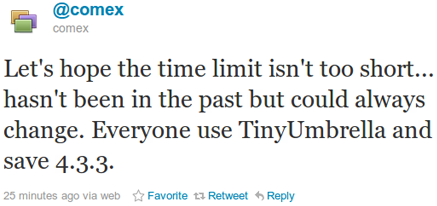
    @Comex, the hacker behind the JailbreakMe, has responded to the leaked iPad 2 jailbreak that was apparently stolen by a beta tester. He tweeted:

    Congratulations, some moron used a dictionary attack(?) to leak a buggy version and put me on a useless time limit.

    Let’s hope the time limit isn’t too short… hasn’t been in the past but could always change. Everyone use TinyUmbrella and save 4.3.3.

    Hopefully, Apple isn’t able to close the exploit before comex finishes the jailbreak. To be safe please follow comex’s advice and save your SHSH Blobs.

    Save SHSH Blobs:

    You can get TinyUmbrella from here (for Windows) or here (for Mac OS X) and then click on “Save SHSH Blobs.”

    Update 2:

    Check out the real story behind iPad 2 Jailbreak here

  • Cydia Tweak Brings Lock Screen Camera Button to iOS 4


    As we await the launch of iOS 5, jailbreak developer Filippo Bigarella provides us with a taste of the goodies we’ll be getting our hands on this fall. CameraLock — a great tweak that introduces a camera button to your lock screen.

    The button introduced by CameraLock is customizable, so you can modify its functionality to suit you. You can launch a third-party app instead of the built-in camera.

    How to install?

    • In Cydia -> Add source: http://filippobiga.me/repo/
    • Search for CameraLock and push install
    • Its free
  • How To Downgrade From iOS 5 To iOS 4.X Guide


    Well you had to do it didn’t you. You just had to taste that infamous iOS 5 beta and now you have been cast from many stuff you used to in the previous version, don’t worry! We are here to help bring you back from the abyss!

    Prerequisites:

    1. The IPSW of choice (I would recommend 4.3.3) as no need to roll back further. Just make sure you have your SHSH stored with Cydia if you choose to go older then 4.3.3).
    2. TinyUmbrella. Just download the version that will work for your system.
    3. iTunes 10.5 beta. You should have this already as you needed it to install 5.0 beta

    How To Downgrade From iOS 5 To iOS 4.X Guide:

    1. Open iTunes
    2. Plug in your device
    3. Enter DFU mode
      • Turn device off
      • Hold power button for 3 seconds
      • Without releasing power button, hold down home button for 10 seconds
      • Release power button, but continue to hold the home button until iTunes recognizes your iPhone in recovery mode. If you did it right, it should just have a black screen with no connect to iTunes logo.
    4. Hold down the option key / shift on windows and click the restore button in iTunes
    5. Browse to wherever you have your IPSW saved and select it.
    6. iTunes will give you some warning, just click the flashing ok button.
    7. Sit back while your computer is working.
    8. If you are using an iPhone 4, you should be done. If not, you have received some sort of error more then likely. This is normal. Open TinyUmbrella and click the exit from restore button.
    9. YOUR DONE!!!

    Note:

    if you have changed your host file for cydia, you have to change it back to use this guide. TinyUmbrella will do this for you in the advanced tab.