• iSteve: ‘The Book of Jobs’ First Authorized Biography of Steve Jobs Coming Early 2012


    The first authorized biography of Steve Jobs which dubbed iSteve: The Book of Jobs by Walter Isaacson will be published in early 2012 by Simon and Shuster as announced sunday by ABCNews. Here is what Fortune had to say about the man who won Jobs’ trust:

    The Jobs book will be his fourth major biography. In addition to Kissinger: A Biography (1992) he has written Benjamin Franklin: An American Life (2003) and Einstein: His Life and Universe (2007). His most recent book is American Sketches: Great Leaders, Creative Thinkers, and Heroes of a Hurricane (2009).

    How did Walter manage to win the trust of Steve Jobs, a man whose penchant for secrecy, and his contempt for journalists, are legendary? Says Simon & Schuster editor-in-chief Priscilla Painton, Isaacson’s editor and a Time alumna: “It was Walter’s idea. And you know Walter — he just worked at it.” Fortune has a great profile on Isaacson who has a long history of convincing notable people to tell them their story.

    The Jobs book was announced in February of last year but with no title and release date.

  • How To Unlock iPhone 4, 3GS on iOS 4.3.1 with Ultrasn0w 1.2.1


    iPhone Dev Team has released Ultrasn0w 1.2.1 unlock for iOS 4.3.1. The unlock tool can be used with iPhone 4 and iPhone 3GS. Its not a new unlock, it can only unlock lower basebands whose unlock was already possible but broken on iOS 4.3.1. Ultrsn0w 1.2.1 WILL NOT unlock higher basebands whose unlock is not possible right now.

    If you have upgraded to iOS 4.3.1 firmware and jailbroken you device with PwnageTool 4.3 or Sn0wbreeze 2.5 and requires an unlock then you can use Ultrasn0w 1.2.1.

    Compatible basebands with Ultrasn0w 1.2.1:

    iPhone 4: 01.59.00
    iPhone 3GS: 04.26.08 / 05.11.07 / 05.12.01 / 05.13.04 / 06.15.00

    DO NOT USE WITH the following basebands:

    iPhone 4: 02.10.04 / 03.10.01 / 04.10.01
    iPhone 3GS: 05.14.02 / 05.15.04 / 05.15.04 / 05.16.01 / 05.16.02

    Remember you need to have a jailbroken device with PwnageTool 4.3 and Sn0wbreeze 2.5.

    How To Guides for Untethered 4.3.1 Jailbreak on Windows & Mac
    How To Guides for Untethered 4.3.1 Jailbreak on Windows & Mac

    Step 1: You have to jailbreak your iPhone 4 / 3GS on iOS 4.3.1 with preserving your old baseband, follow this guide (PwnageTool 4.3 for Mac) or (Sn0wbreeze 2.5 Windows)

    Step 2: Once you jailbreak yoour device, you can now unlock your iPhone 4 / 3GS with Ultrasn0w 1.2.1 from Cydia. To do so, follow the steps below:

    • Press to launch Cydia Installer from your SpringBoard.
    • Press to select the Manage tab at the bottom of the screen.
    • Press to select the Sources button.
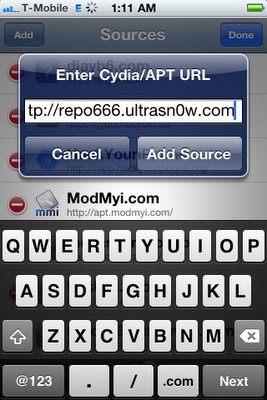
    • Now touch on Edit and then on Add. You will be prompted to enter the URL of the source. Type http://repo666.ultrasn0w.com and touch on Add Source to add this repository.

    Cydia will now automatically update your sources by following a series of automated steps.

    • After installation is completed. Search for “ultrasn0w 1.2.1” in Cydia and install this application. This app will automatically unlock your iPhone so that you can use it with any carrier.

    Step 3: Almost done, now simply reboot your iPhone and you should have a fully unlocked iPhone 3GS / 4 on iOS 4.3.1.

  • New Fuji Mountain Wallpaper in Mac OS X Lion Hints at Future Retina Displays Mac


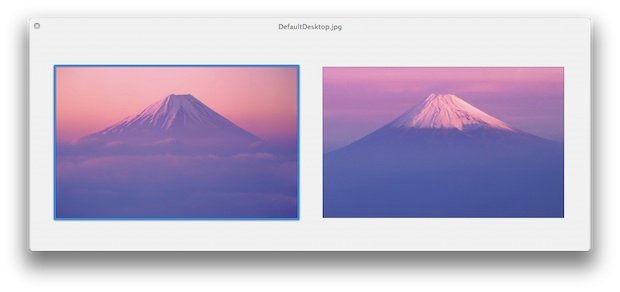
    The new default wallpaper on OS X 10.7 Lion Developer Preview 2 featuring Fuji Mountain has a whopping size of 3200×2000 pixels as noted by the guys at osxdaily.com.

    Click here to download the full version, [3200×2000 pixels.]

    However, 3200×2000 pixels is significantly larger than any existing resolution offered by Apple displays, including the 27″ and 30″ Apple Cinema Displays. Furthermore, the default wallpaper size in Mac OS X 10.6 is 2560×1600, which is exactly the maximum resolution of Apple’s 30″ Cinema Display. Is it just coincidence that Apple is bundling an ultra high resolution image in Lion as the new default wallpaper, or does this suggest that higher resolution Macs, possibly with retina displays, are coming sometime in the future?

    Here’s a nice chart that shows what screen size at what viewing distance with that resolution would be considered a retina display:
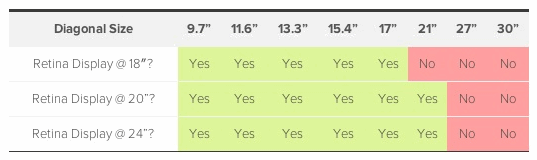
    Notice that even for the closest viewing distance of 18 inches, a 3200 x 2000 resolution represents a Retina Display for display sizes up to and including 17 inches. And of course, that covers the entire range of Apple laptops on the market today.

    And smaller displays wouldn’t need a resolution that high to be considered retina:

    A 13.3” MacBook Air, for example, would need a screen providing approximately 2200 x 1375 pixels (191 dpi) to be considered a Retina Display at an 18-inch viewing distance.

    To help understand what a “Retina Display” means. Steve Jobs, at the announcement of the iPhone 4, had this description:

    It turns out there’s a magic number right around 300 pixels per inch, that when you hold something around to 10 to 12 inches away from your eyes, is the limit of the human retina to differentiate the pixels.

    Other than providing dramatically improved display clarity on a Mac, the other reason a Mac with a 3200×2000 pixel resolution makes sense is for iOS developers. So what does this have to do with iPad 3?

    … according to an analyst cited by AppleInsider, the high resolution retina display will come to iPad 3 in the form of a whopping 2048×1536 resolution display. If this happens, you’d expect similar displays to come to the Mac platform so that developers can accurately produce and test apps for the ultrahigh resolution.

    Indeed, 3200×2000 would be such an ultrahigh resolution for a Mac, and it would be more than adequate to develop for a 2048×1536 pixel iPad 3 display.

    Sure, this is speculation based on a new wallpaper in a developer preview OS, but who knows what Apple is prepping for us.

  • How to Enable Multi-Touch Gestures in iOS 4.3.1 for iPhone 4 Using Cydia Hack


    We have previously showed you a way to enable multitouch gestures in iOS 4.3.1 using a manual method to SSH through the device but thanks to Cydia Hacks that can fix the issue and do all the dirty work on behalves of you. All you need is a jailbroken iPhone and make sure, currently the tweak only works with iPhone 4 and iPod touch 4G.

    Step 1: Search for MT Gestures via ModMyi repo

    Step 2: Install / respring and its done

    You can now do the following three gestures using four or five fingers:

    • Pinch to home screen
    • Swipe up for Multitasking bar
    • Swipe left/right to switch apps.